User Manual
Welcome
Introduction
Welcome to WildTrax 2027, the multitrack recorder built for production sound: film, television, broadcast and live events. WildTrax is made for recording, reporting and delivery, not editing or mixing, so everything in it serves one goal: clean, well-labeled audio that post can trust.
What WildTrax Does
- Records 2 to 512 tracks from any Core Audio, Dante or MADI device.
- Writes your metadata into every file: scene, take, roll, notes and timecode, in Broadcast WAV or RF64 with iXML.
- Takes you from set to post in one app: record, review, organize, assemble and deliver sound reports.
What's New in WildTrax 2027
- Workspace: panels and tabs, themes with your own accent colors, the Project Manager with crash recovery, and keyboard navigation.
- Recording: a new Tracks panel (reorder, pin, list or grid, track icons), configurable meters with RMS, Dante channel names, Virtual I/O, takes that start on the :00 frame, and Snapshots with Recall Safe.
- Review and delivery: the Library (including erasing SD cards), the Player, the Timeline, and rebuilt sound reports with PDF export.
- Session tools: the Toolkit and Guest Mode.
- Integrations: Stream Deck, Bitfocus Companion, OSC, HTTP, and Python scripting.
Questions? Check Troubleshooting and FAQ, use Help → Send Feedback, or email info@haltertechnical.com.
Thank you for choosing WildTrax. Let's tame your recordings.
System Requirements
Operating System
- macOS 12 Monterey or later
- Apple Silicon or Intel: one universal app runs natively on both. Apple Silicon recommended.
Hardware
- Processor: Apple M1 or newer recommended
- Memory: 8 GB RAM minimum; 16 GB or more for large sessions
- Storage: an SSD with at least 1 GB free for the app, plus space for recordings (a dedicated recording SSD is recommended)
- Display: 1280 × 800 minimum; 1920 × 1080 or higher recommended
Audio Hardware
WildTrax works with any Core Audio interface.
- Class-compliant USB or Thunderbolt interfaces (USB 3.0 or higher recommended)
- Dante and MADI interfaces (dedicated clock sync recommended)
- Aggregate devices made in macOS Audio MIDI Setup (use only when necessary)
- An external word clock is recommended for multi-device or networked setups
Network
- An internet connection is needed to log in, activate your license and get updates. Once you're logged in and activated, WildTrax works offline.
- Wi-Fi or Ethernet for remote control from other devices (wired Ethernet recommended for Dante and high channel counts).
Additional Software
- No extra drivers are needed for Core Audio devices.
- Optional: Dante Virtual Soundcard or a MADI driver for networked systems.
Performance scales with your hardware. A dedicated interface, a wired network and closing background apps give the most stable experience in the field.
Installation
Step 1: Download WildTrax
- Go to https://wildtrax.io.
- Download the latest WildTrax 2027 installer for macOS.
Step 2: Install
- Open the downloaded .dmg file from your Downloads folder.
- Drag WildTrax into your Applications folder.
Step 3: Launch WildTrax
- Open your Applications folder and double-click WildTrax.
- If macOS asks, confirm that you want to open it.
Step 4: Grant Permissions
macOS asks for each permission the first time WildTrax needs it. Click Allow:
- Microphone: to record from your audio hardware. Asked at first launch.
- Bluetooth: to sync timecode with Tentacle Sync and Ambient Lockit devices. Asked the first time you scan for one.
- Local Network: for Dante channel names, remote control and the WildTrax iOS app. Asked on macOS 15 and later.
- Files and folders: to record to your Documents or Downloads folder, an external drive or a network volume. Asked the first time you record there.
You can change these later in System Settings → Privacy & Security. If you turned Microphone off, turn it on there and reopen WildTrax.
Step 5: Log In
Sign in with your WildTrax account, or create one. See Account and License.
Step 6: Create or Open a Project
The Project Manager opens at launch: start a new project, open one, or pick a recent one. WildTrax detects your audio interfaces automatically.
WildTrax 2027 installs alongside WildTrax 2026: they are separate apps with separate settings. The first time you open 2027, it can bring over your 2026 preferences and login.
Account and License
WildTrax uses your account to activate your license and unlock the features of your plan. Manage it in the app (Preferences → Account) or online at https://wildtrax.io.
Creating an Account
- Launch WildTrax and choose to log in.
- Your browser opens the WildTrax account page. Create an account with your name, email and a password.
- Confirm your email from the message we send you.
- Log in. The browser hands you back to WildTrax, which is now signed in.
Logging In
- Open Preferences → Account and click Log In.
- Sign in on the account page that opens in your browser.
- WildTrax signs in automatically when you return to it.
Plans
WildTrax plans unlock features in tiers: Demo, Basic, Essential and Pro. Features that need a higher plan are labeled in the app. Your current plan is shown in Preferences → Account.
💡 Demo is free, and it's more than a trial. It doesn't expire, and everything outside its limits works: metadata and timecode, sound reports in CSV and PDF, the Library, Player, Timeline, Spectrum Analyzer and Toolkit. Use it to learn WildTrax before a job, prepare a project, fix metadata on files from another recorder, or build and deliver a sound report. Demo records 2 tracks and holds 2 sample pads and 2 playlist entries; custom routing, accent colors and your own logo on PDF reports need a paid plan.
Subscriptions can be canceled at any time with no further commitment; access continues until the end of the billing period. Use Manage Subscription to change your plan, see billing or cancel.
Devices
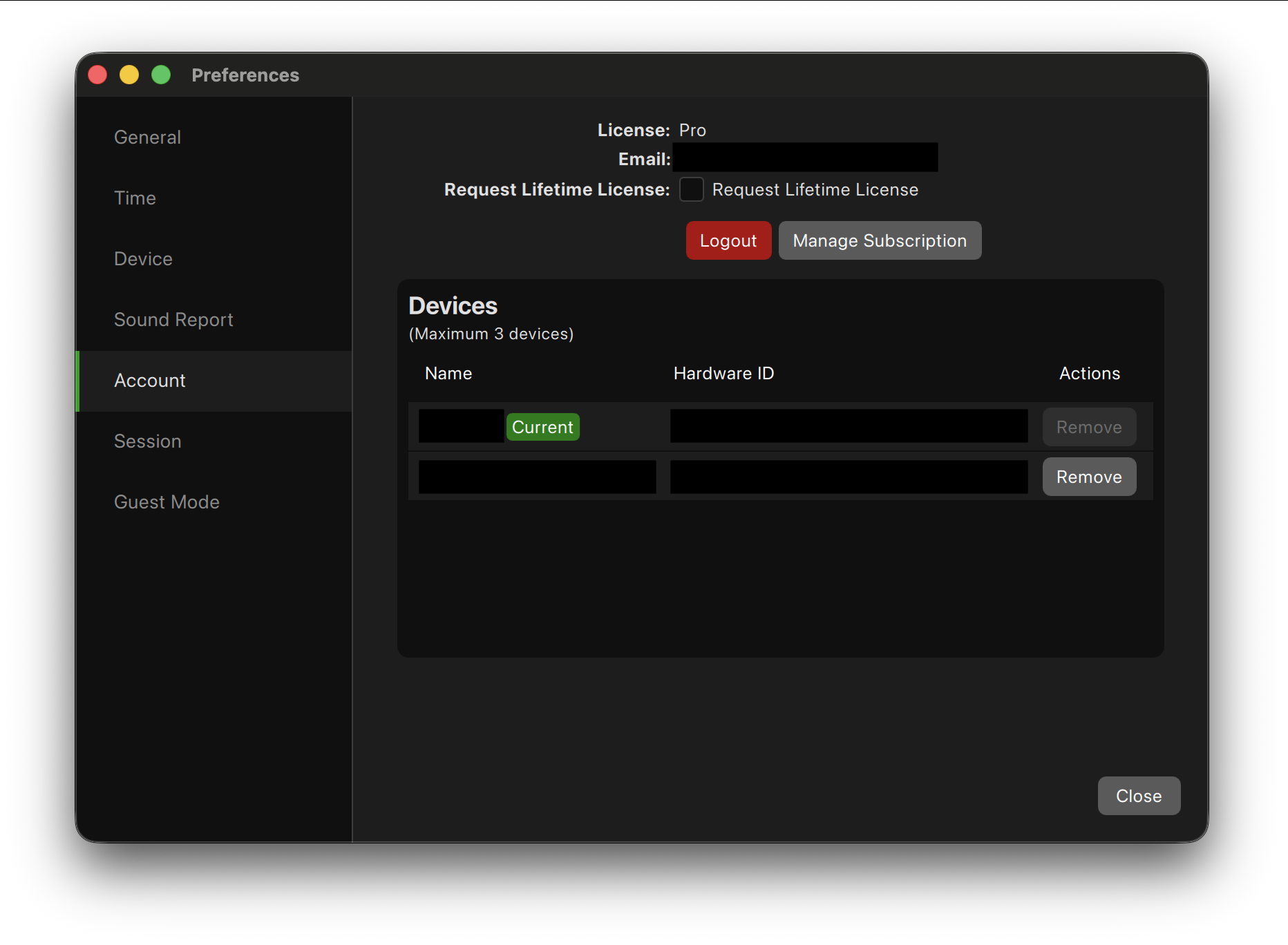
- Subscriptions can be active on up to 3 devices at once, for example a main rig, a backup and a cart.
- Lifetime licenses are assigned to one device each. Use Request Lifetime License in Preferences → Account to assign one.
- Remove a device from the list in Preferences → Account to free its slot. Changes take effect immediately.
Logging Out
Click Logout in Preferences → Account. Logging out doesn't delete projects, preferences or recordings; they're there when you log back in.
Quick Start Guide
A few minutes of setup makes sure inputs are patched correctly, recordings are clean and metadata is right from the first take.
Step 1: Connect Your Audio Interface
- Power on your interface and connect it by USB, Thunderbolt or network (Dante, MADI).
- Launch WildTrax. In Preferences → Device, choose your Input Device, Output Device, Sample Rate and Buffer Size.
Step 2: Patch Inputs
- Open the I/O Matrix panel on the Input tab.
- Click a cell to patch a hardware input to a track. Option-click patches a whole diagonal at once.
- Check that each track shows signal on its meter in the Tracks panel.
Step 3: Set Up Tracks
- In the Tracks panel, set the track count and name each track (Boom, Lav 1, …).
- Arm each track you want to record.
- Use Monitor All, or each track's monitoring controls, to listen.
Step 4: Set Up Files
- In the Files panel, add a Destination: the folder recordings are written to. Add more destinations to record to several drives at once.
- Add files to the destination, choose each file's tracks, bit depth and format, and set its name with tokens such as {scene}, {take} and {tc}.
- Set file size or duration limits if you need them.
Step 5: Enter Metadata
- In the Metadata panel, fill in Project, Scene, Slate, Take, Roll and Note.
- Choose which fields increment with each take and reset when the scene changes.
Step 6: Set Timecode
In Preferences → Time, set the frame rate and time source (Time of Day, LTC, Tentacle Sync, MIDI Timecode and more).
Step 7: Save Your Project
Choose File → Save Project (⌘S). The project (.wtx) stores routing, tracks, files, metadata and settings so you can reopen the whole setup later.
Step 8: Record
Press Record (⌘⌥R) to start a take and Stop (⌘⌥S) to end it. False Start (⌘⌥F) marks a take as a false start. After each take WildTrax updates the sound report and advances the metadata you set to increment.
First-Time Setup Checklist
- [ ] Interface connected and chosen in Preferences → Device
- [ ] Inputs patched in the I/O Matrix
- [ ] Tracks named and armed
- [ ] Destinations and file names set in the Files panel
- [ ] Metadata entered
- [ ] Frame rate and time source set
- [ ] Project saved
- [ ] A short test take recorded and checked in the Player
The Workspace
Main Window
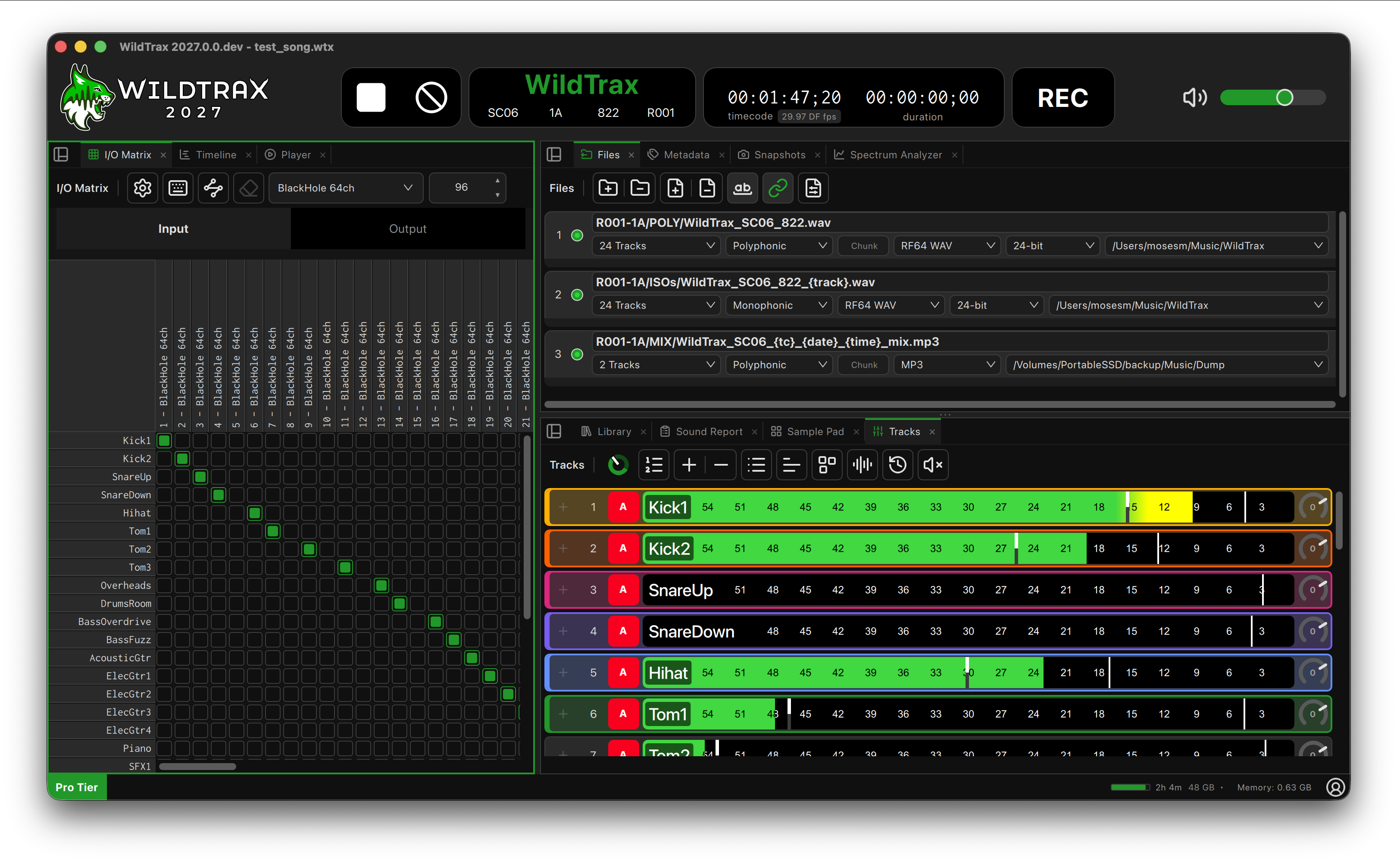
Header
- Transport: Record, Stop and False Start.
- Project Info: the project name, scene, slate, take and roll.
- Timecode: the current timecode, frame rate and time source.
Panel Frames
The workspace is made of frames, each holding one or more panels as tabs.
- Use
View → 1, 2, 3 or 4 Panelsto choose a layout. - Click a tab to switch panels in a frame.
- Drag a tab out of a frame to open it in its own window, and drag the window back over a frame to dock it again.
- WildTrax remembers your layout between sessions.
Status Bar
- Status messages, warnings and errors.
- Recording time left on your destination drives.
- An indicator when the LTC Generator or the Signal Generator's live output is running; click it to open the tool.
Keyboard Navigation
- Tab / Shift-Tab: move between controls inside a panel.
- ⌃Tab / ⌃⇧Tab: switch tabs in the current frame.
- ⌃
/ ⌃⇧: move between frames. - ⌘1–⌘0: jump to a panel (see Keyboard Shortcuts).
Projects
When you launch WildTrax, the Project Manager lets you start a new project, open one or pick a recent one. The window title shows "Edited" when there are unsaved changes, and WildTrax asks before closing a project with changes. If WildTrax quits unexpectedly, it offers your unsaved changes back the next time it opens.
Preferences
Open Preferences with ⌘,. The tabs are General, Time, Device, Sound Report, Account, Session and Guest Mode.
General
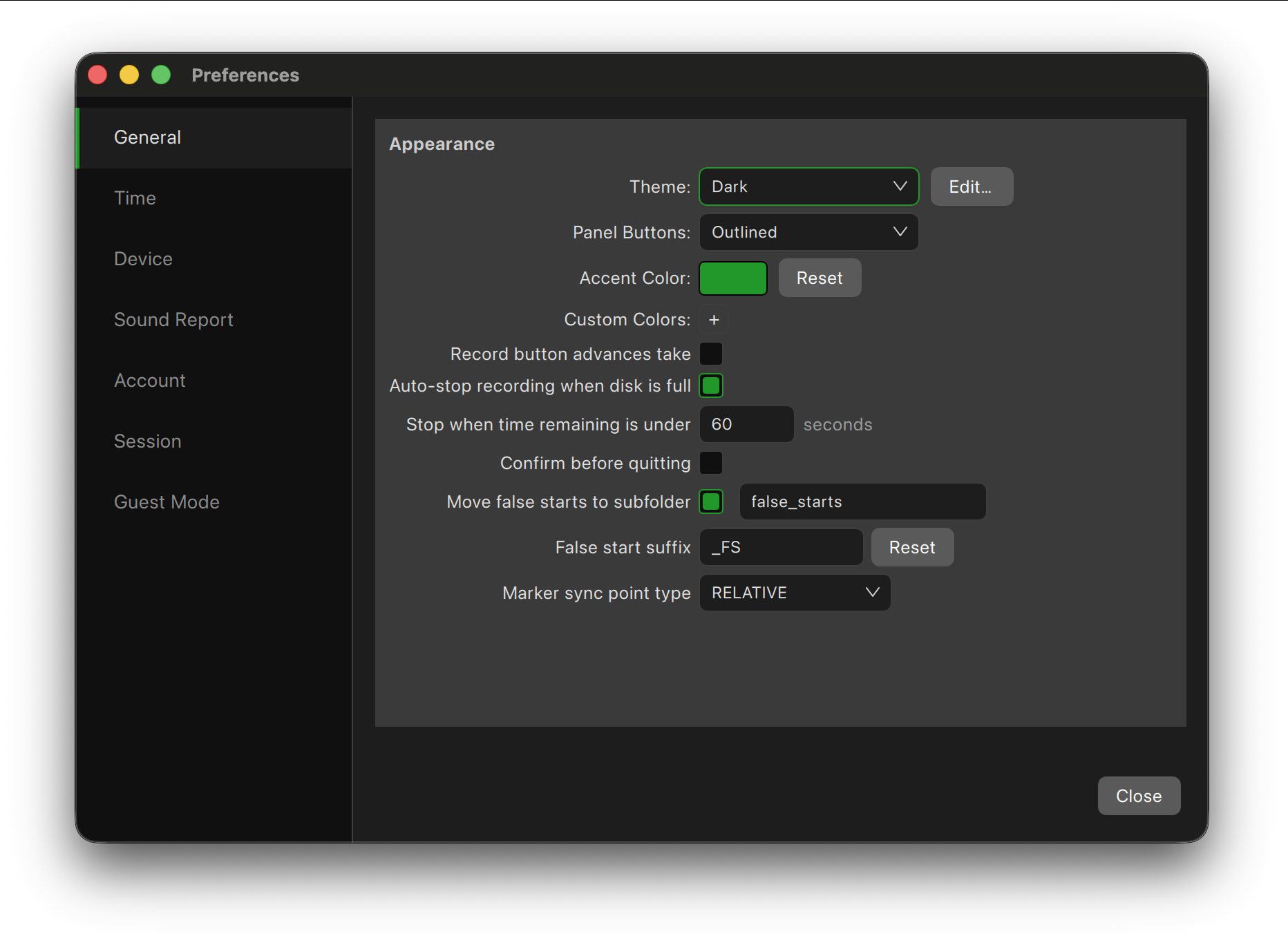
- Theme and Accent Color: choose the app's theme and accent color. Custom colors (Pro) can be added from any color picker with +, and removed with right-click.
- Record Button Advances Take: pressing Record during a take ends it and starts the next.
- Confirm Before Quitting: asks before WildTrax closes.
- False starts: a suffix (default _FS) is added to false-start file names, and false starts can be moved to a subfolder.
- Auto-stop recording when disk is full: stops the take a set number of seconds before a drive runs out, so files close cleanly instead of being cut off. Applies to every destination drive.
- Marker sync point type: how note markers are stored in the iXML sync point list of recorded files.
Time
The Time tab sets how WildTrax counts and stamps timecode.
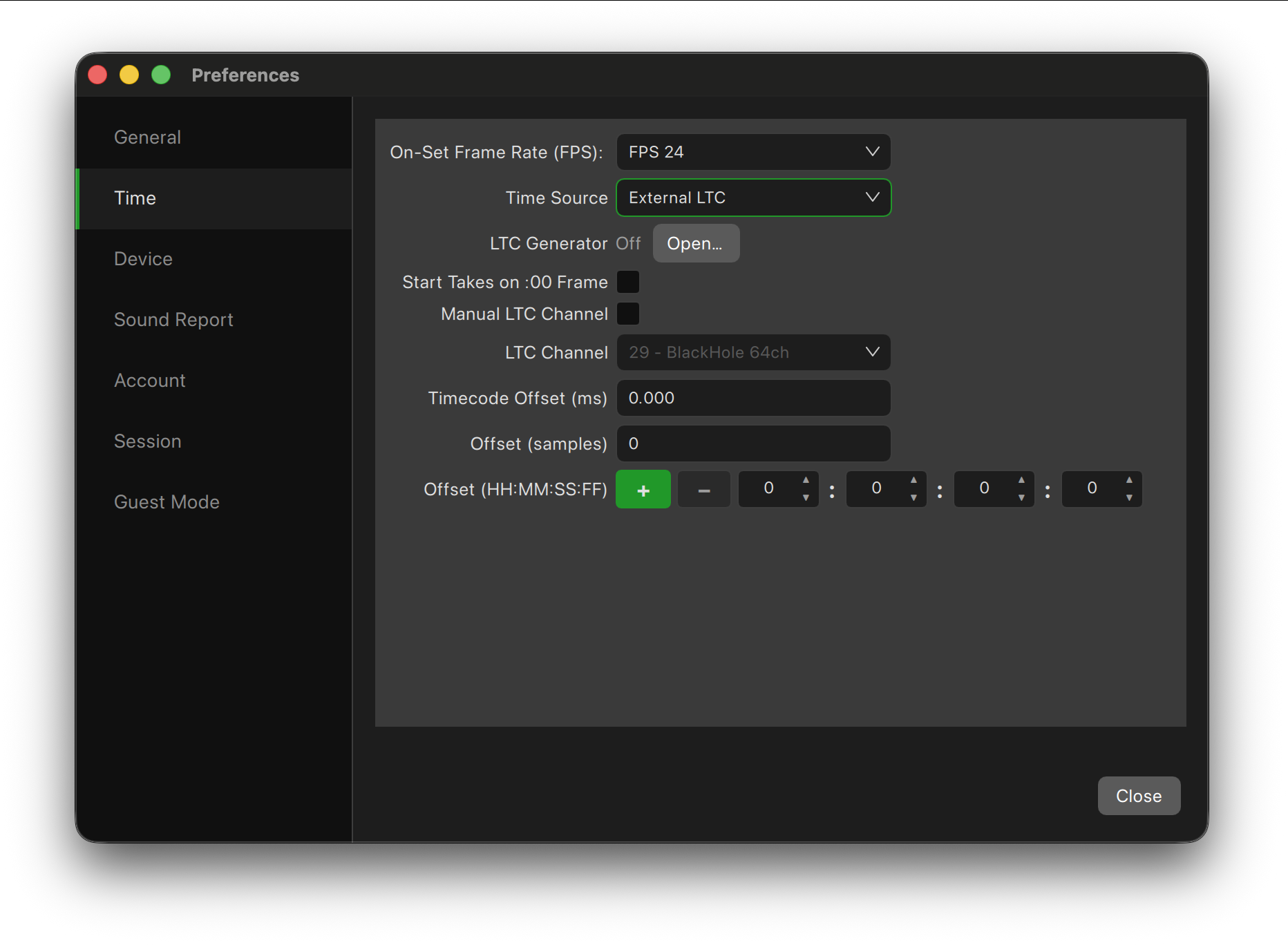
- On-Set Frame Rate: 23.976, 24, 25, 29.97 (drop and non-drop), 30, 50, 59.94 (drop and non-drop) and 60.
- Time Source:
- Zero: every take starts from 00:00:00:00.
- Session: counts from the start of the session.
- Time of Day: the Mac's clock.
- LTC: reads linear timecode from an input channel. Choose the channel yourself (Manual LTC Channel) or let WildTrax find it.
- Record Run: advances only while recording.
- Tentacle Sync: syncs to Tentacle devices over Bluetooth. Click Scan to find devices.
- MIDI Timecode: locks to MTC from a MIDI device (choose the MIDI bus).
- Ambient Lockit (Bluetooth): syncs to Ambient Lockit devices.
- Auto-sync FPS (Tentacle Sync and Lockit): sets the project frame rate to the device's whenever the device reports one. On by default.
- Start Takes on :00 Frame: every take starts on the first frame of a timecode second, with your full pre-roll kept.
- Timecode Offset: shift the timecode written to files, in milliseconds, samples or HH:MM:SS:FF. The three fields stay in step; offsets apply to future takes only.
- LTC Generator: shows whether WildTrax is sending timecode, with a button to open the LTC Generator (see Toolkit).
Device
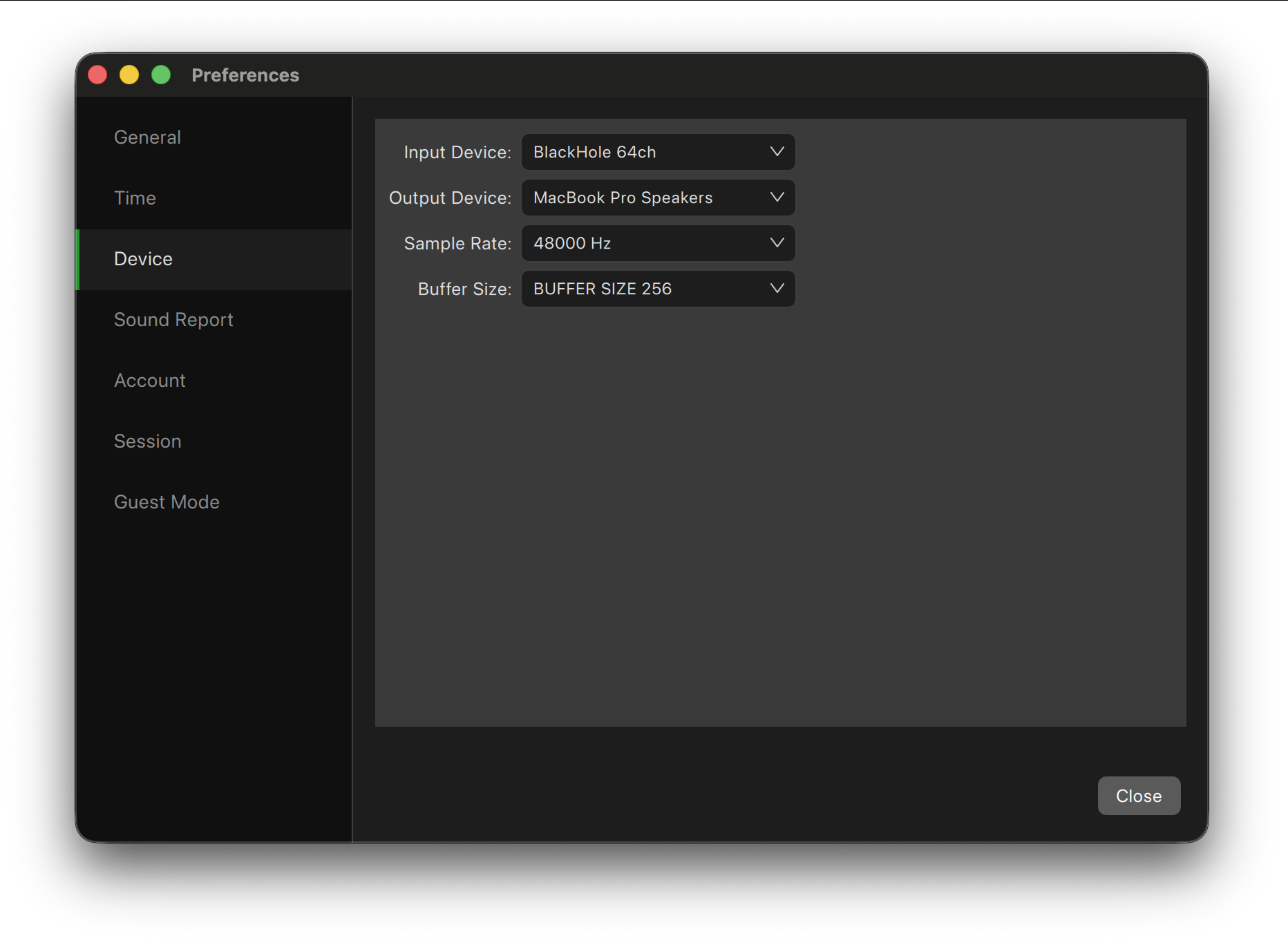
- Input Device / Output Device: the Core Audio devices used for recording and for monitoring and playback.
- Sample Rate: the session rate, from those your hardware supports.
- Buffer Size: smaller buffers lower monitoring latency; larger ones are more stable on big sessions.
Sample rate and buffer size can't change while recording. If your device disconnects, WildTrax tells you, falls back to another device, and switches back when yours returns (never mid-take).
Sound Report
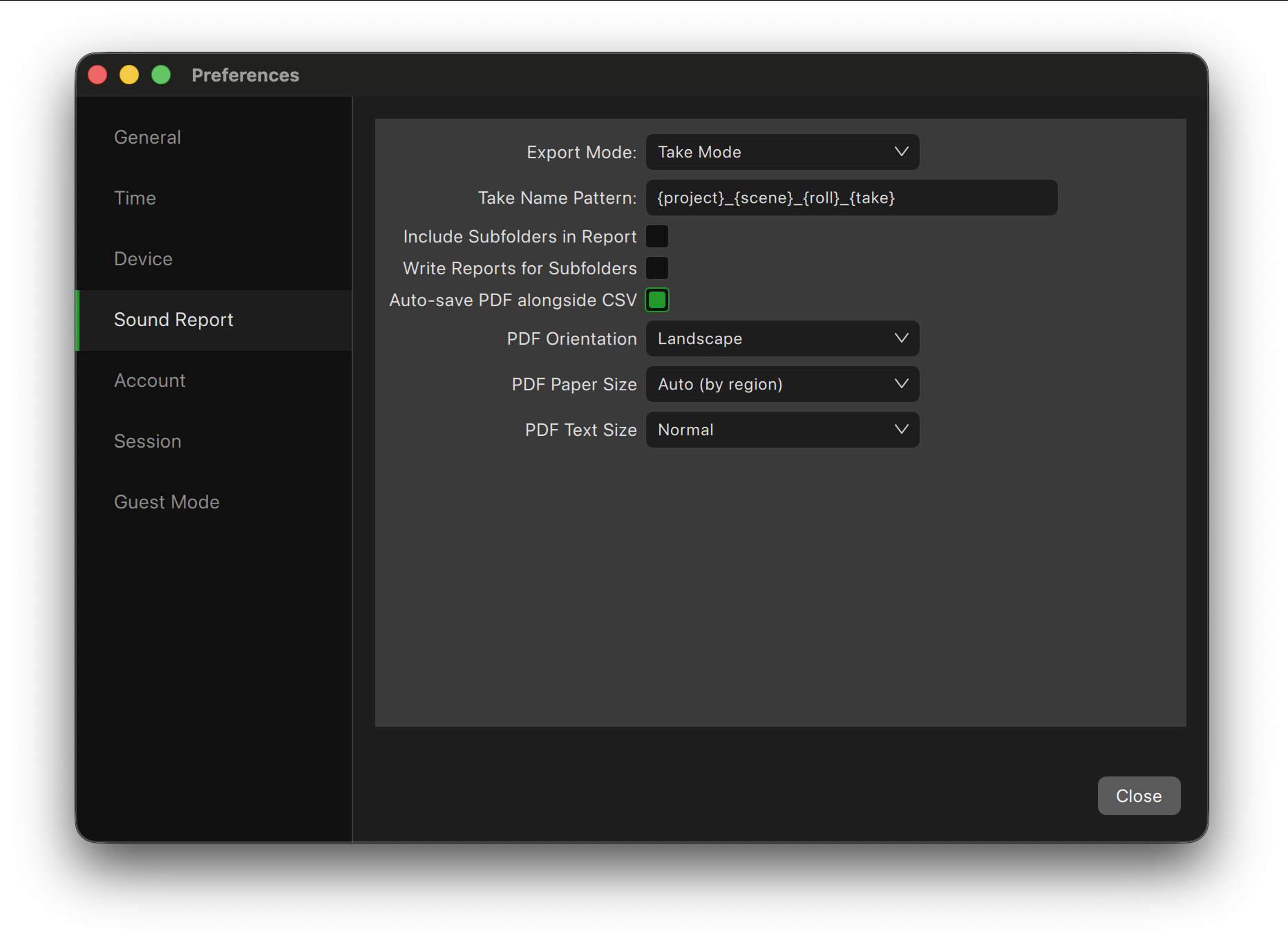
- Export Mode and Take Name Pattern for report rows.
- Include Subfolders in Report and Write Reports for Subfolders.
- PDF Orientation, Paper Size and Text Size, and Auto-save PDF alongside CSV after each take.
Account
Your login, plan and devices. See Account and License.
Session
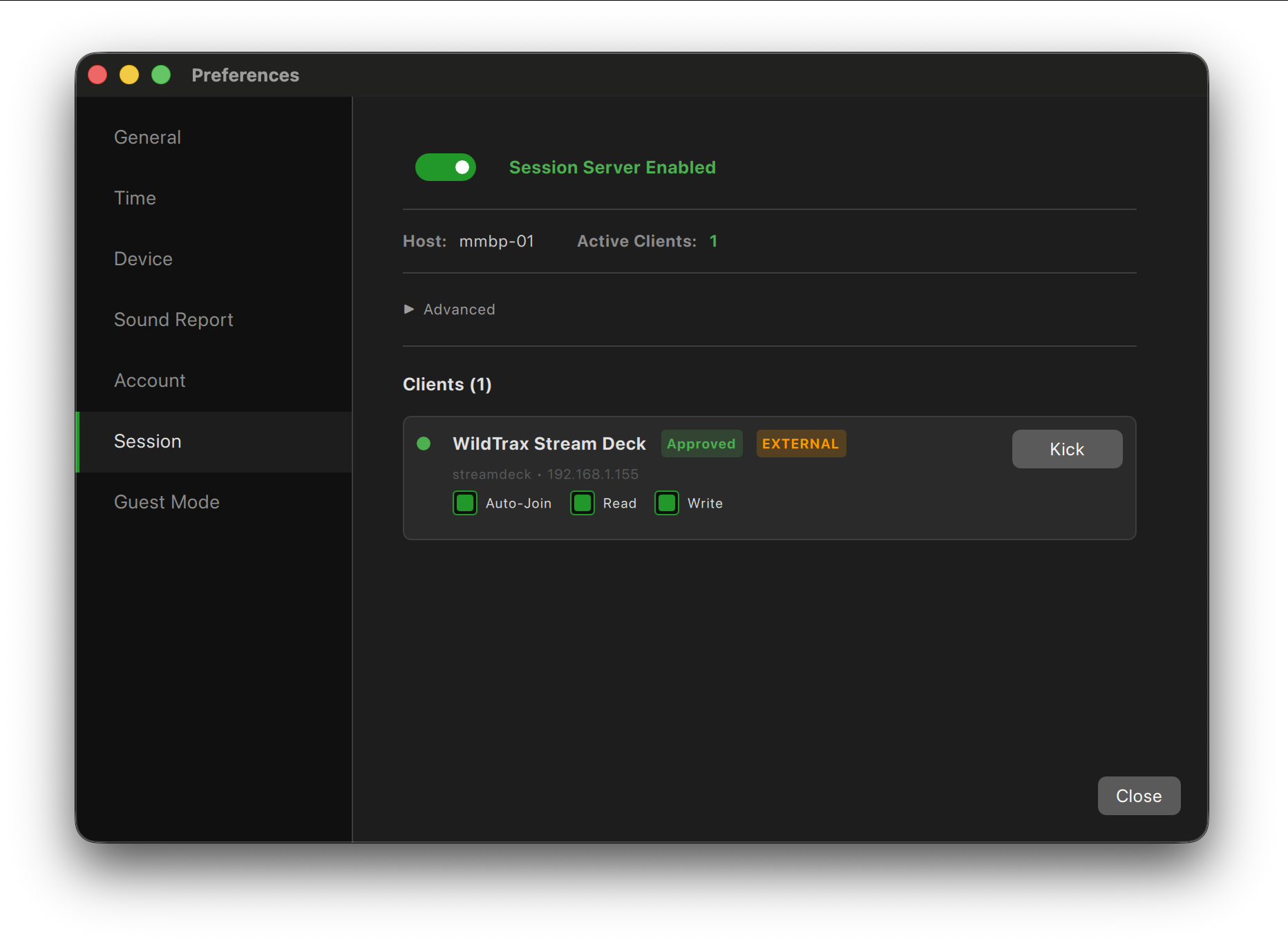
Remote control: the session server that control surfaces, the WildTrax iOS app, Stream Deck and other tools connect to. See Remote Control.
Guest Mode
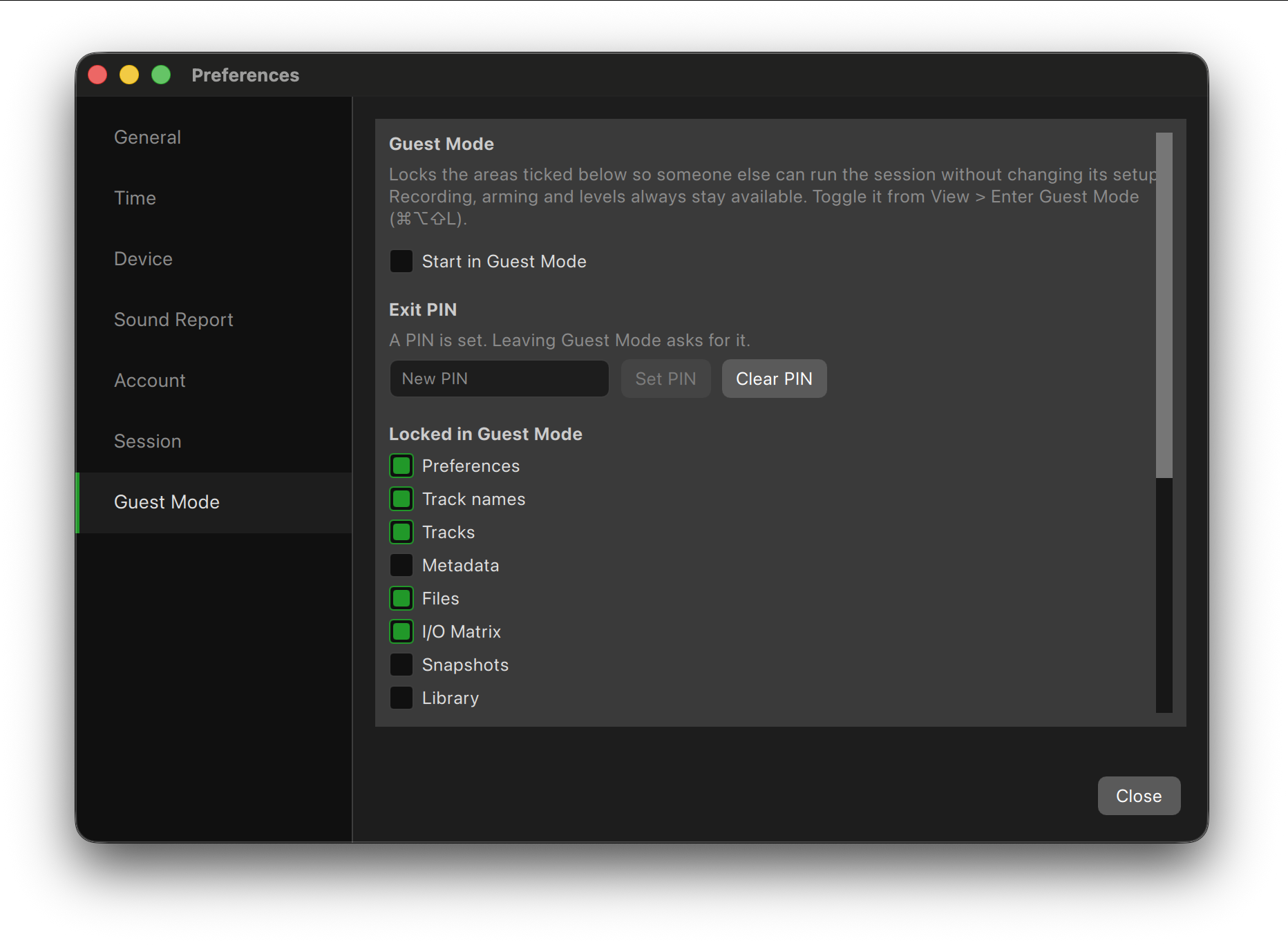
What Guest Mode locks, an optional exit PIN, and whether WildTrax starts in Guest Mode. See Guest Mode.
Panels Overview
Each panel handles one part of the workflow, and all of them work while recording. To arrange them, see Panel Frames in Main Window.
Panels in WildTrax 2027
The Add Panel menu groups the panels the same way as this table.
| Group | Panel | What it's for | Shortcut |
|---|---|---|---|
| Recording | Tracks | Arm, name, monitor and meter every track | ⌘1 |
| Recording | Metadata | Project, scene, slate, take, roll, notes and markers | ⌘2 |
| Recording | Files | Destinations, files, naming and limits | ⌘3 |
| Recording | I/O Matrix | Input and output routing | ⌘4 |
| Recording | Snapshots | Store and recall sets of settings | ⌘5 |
| Review | Library | Browse, search and edit recordings and cards | ⌘6 |
| Review | Player | Review a multichannel file with waveform and mixer | ⌘7 |
| Review | Sound Report | Review, edit and export sound reports (CSV and PDF) | ⌘8 |
| Review | Timeline | Assemble files from several recorders and export them | |
| Review | Spectrum Analyzer | Frequency content of an input or the Player's file | |
| Playback | Sample Pad | Trigger cues and samples | ⌘9 |
| Playback | Playlist | Queue and play back files | ⌘0 |
| Toolkit ▸ | Toolkit | Every tool in one searchable list | |
| Toolkit ▸ | Clip & Peak Detector, Signal Generator, LTC Generator | Each tool on its own, as a panel | |
| Toolkit ▸ | Python tools | Your own panel scripts (see Python Scripting) |
The Script Editor (Window → Toolkit) and the Log (Help → Show Log) open as panels too, but aren't in the Add Panel menu.
The Input Matrix and Output Matrix from WildTrax 2026 are now one panel, the I/O Matrix. Hover any toolbar button to see what it does.
Recording
Audio goes through four stages on its way to disk, each set in its own panel:
- Inputs on your audio device are patched to tracks in the I/O Matrix.
- Tracks are named, armed, monitored and metered in the Tracks panel.
- Files, set in the Files panel, each record a chosen set of tracks: one track makes a mono file, several make a poly file.
- Destinations are the folders files are written to. Add more than one to record to several drives at once.
Tracks Panel
The Tracks panel is the heart of the session: every track's arm state, name, monitoring and level in one view, whether you are recording two mics or a hundred tracks.
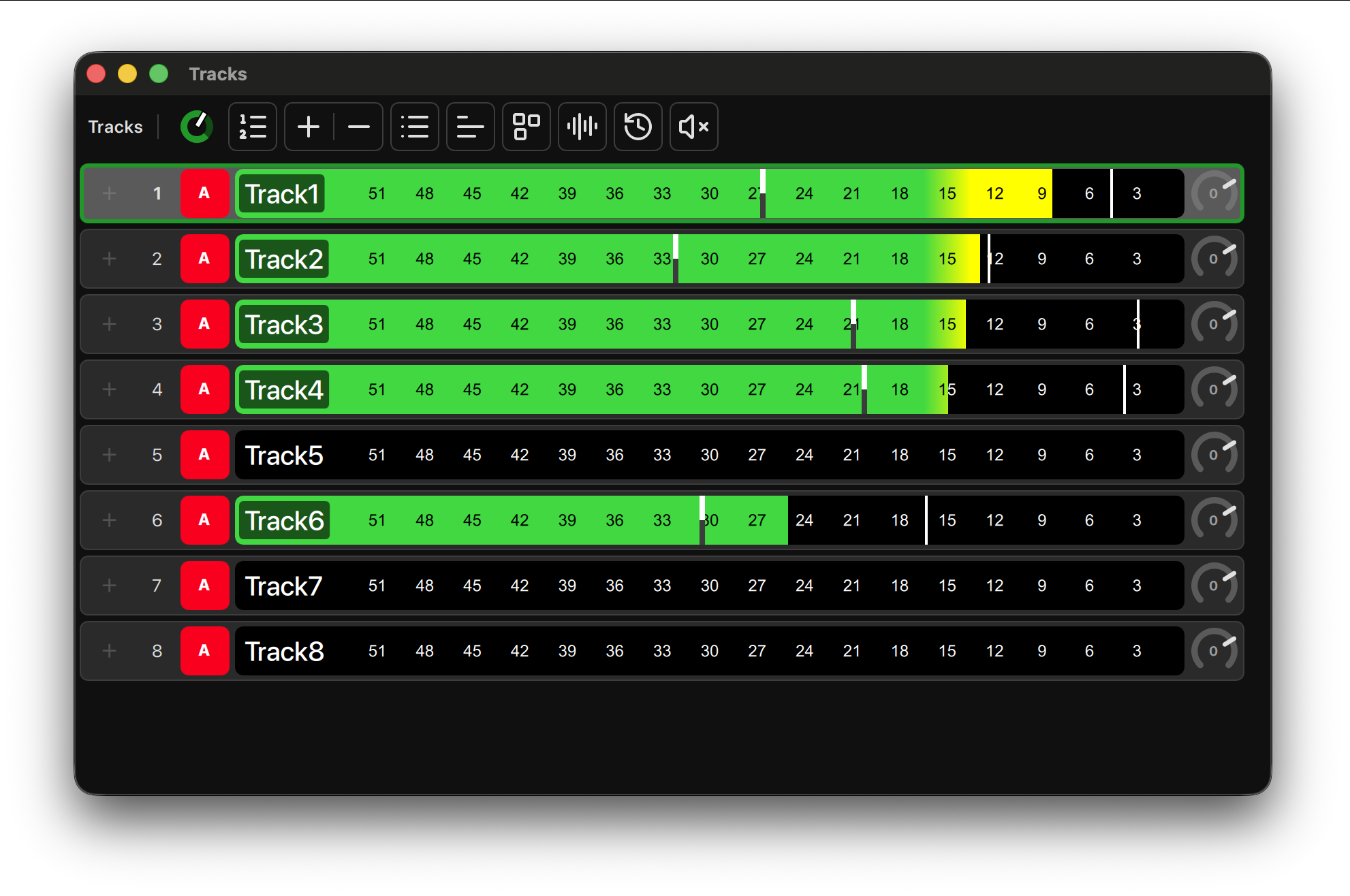
Track Rows
Each track can show these elements. Choose which appear, and in what order, with Track Layout.
- Track number and icon: an emoji or your own image per track, to spot sources at a glance.
- Name: click to rename (Boom, Lav 1, Mix L). Names are written into the files.
- Arm: armed tracks are recorded when you press Record.
- Pan, Mute and Solo: for monitoring only; they never change what is recorded.
- Gain: a digital trim from −60 dB (mute) to +24 dB. It's applied before recording, so it changes what's written to the file as well as what you hear. Drag the dial, Shift-drag for fine steps, double-click for 0 dB.
- Pin: keeps the track at the top of the list, above the unpinned tracks.
- Meter: live level with peak fill and an RMS marker for the average level.
Toolbar

| Control | What it does |
|---|---|
| Buffer Indicator | How full the recording buffer is: green, red while recording. Click to switch between a full-capacity view and a pre-roll view, where amber shows headroom in use. A ! badge means samples were dropped this take. |
| Track count | Set the number of tracks |
| Add Track | Add a new track |
| Remove Track | Remove the selected track(s) |
| List / Grid | Switch between rows and a grid of tiles |
| Meter Orientation | Horizontal or vertical meters |
| Track Layout | Show, hide and reorder track elements; name and icon size; name over the meter |
| Meter Settings | Meter scale: thresholds and colors in dBFS, floor and label step, with a live preview |
| Buffer Settings | Pre-roll (audio kept from before Record) and post-roll |
| Monitor All Tracks | Monitor every armed track |
Tips
- Name every track before recording; post reads the names from the files.
- Track settings are saved in your project.
Metadata Panel
The Metadata panel holds what identifies each take. It's written into every recorded file (iXML and BWF) and into your sound reports, so post can find and sort everything.
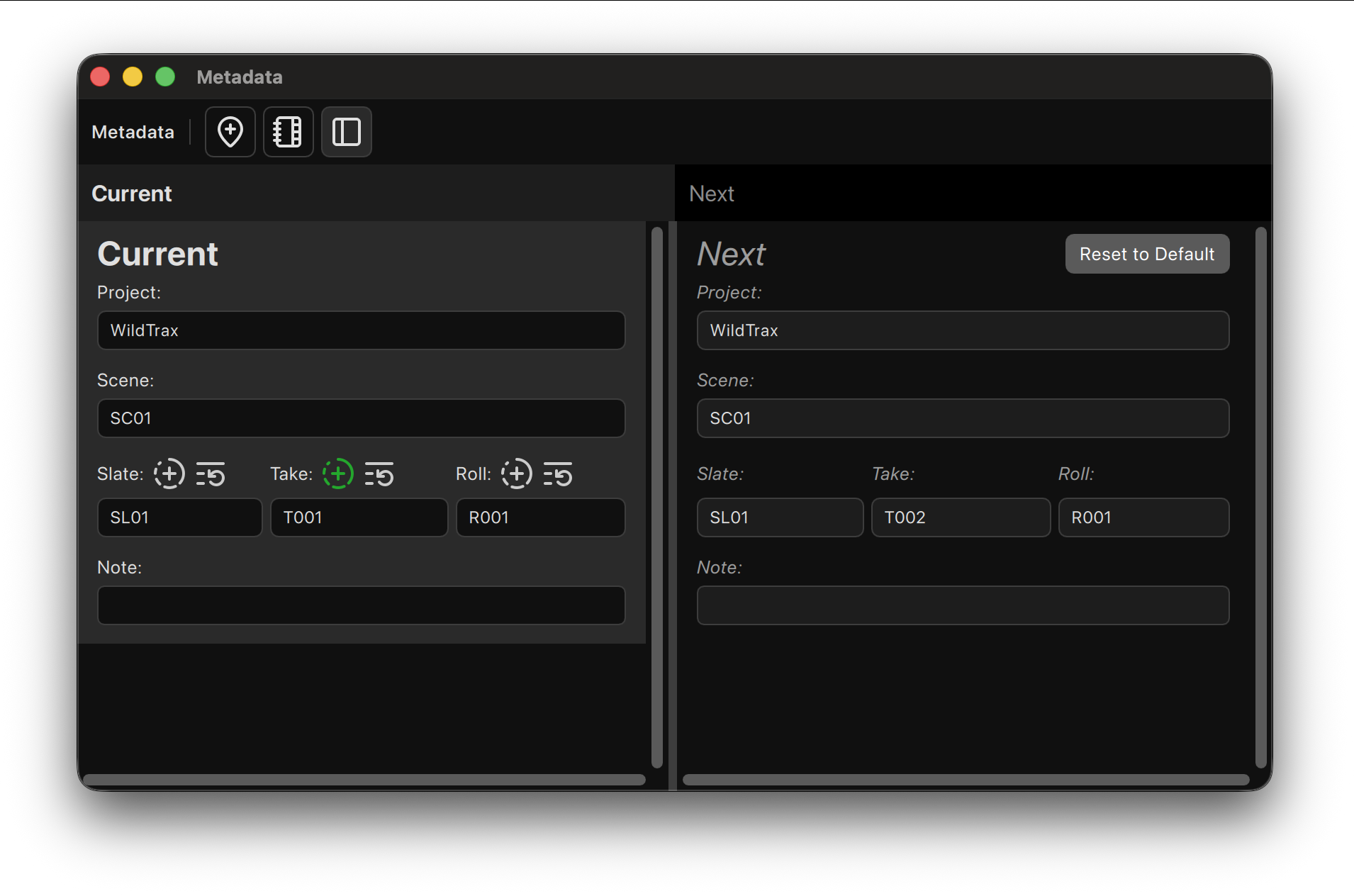
Fields
- Project: the production, e.g. FeatureFilm_2027.
- Scene: e.g. 12A.
- Slate: the shot or slate number.
- Take: the take number.
- Roll: the roll or card, e.g. A001.
- Note: remarks about the take (boom shadow, wild line, plane overhead).
Increment and Reset
Take, Slate and Roll each have two options:
- Auto-increment with each take.
- Auto-reset when the scene changes.
Use Reset to Default to return a field to its starting value.
Markers
Click New Marker (⌘⇧M) to drop a timecode marker into the note while recording, to flag a moment for post. Markers are also written into the file's iXML sync point list.
Note Bank
The Note Bank stores notes you use often. Open it from the toolbar to add, edit or insert notes.
Toolbar
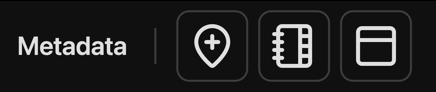
| Control | What it does |
|---|---|
| New Marker | Add a marker at the current timecode (⌘⇧M) |
| Manage Note Bank | Add, edit and insert saved notes |
| Horizontal/Vertical Split | Switch the panel between a horizontal and a vertical layout |
Tips
- Fill in metadata before pressing Record.
- Check your metadata in the Sound Report after recording; you can fix it there or in the Library.
Files Panel
The Files panel decides where recordings go and what they're called. In WildTrax 2027 the folders you record to are called Destinations.
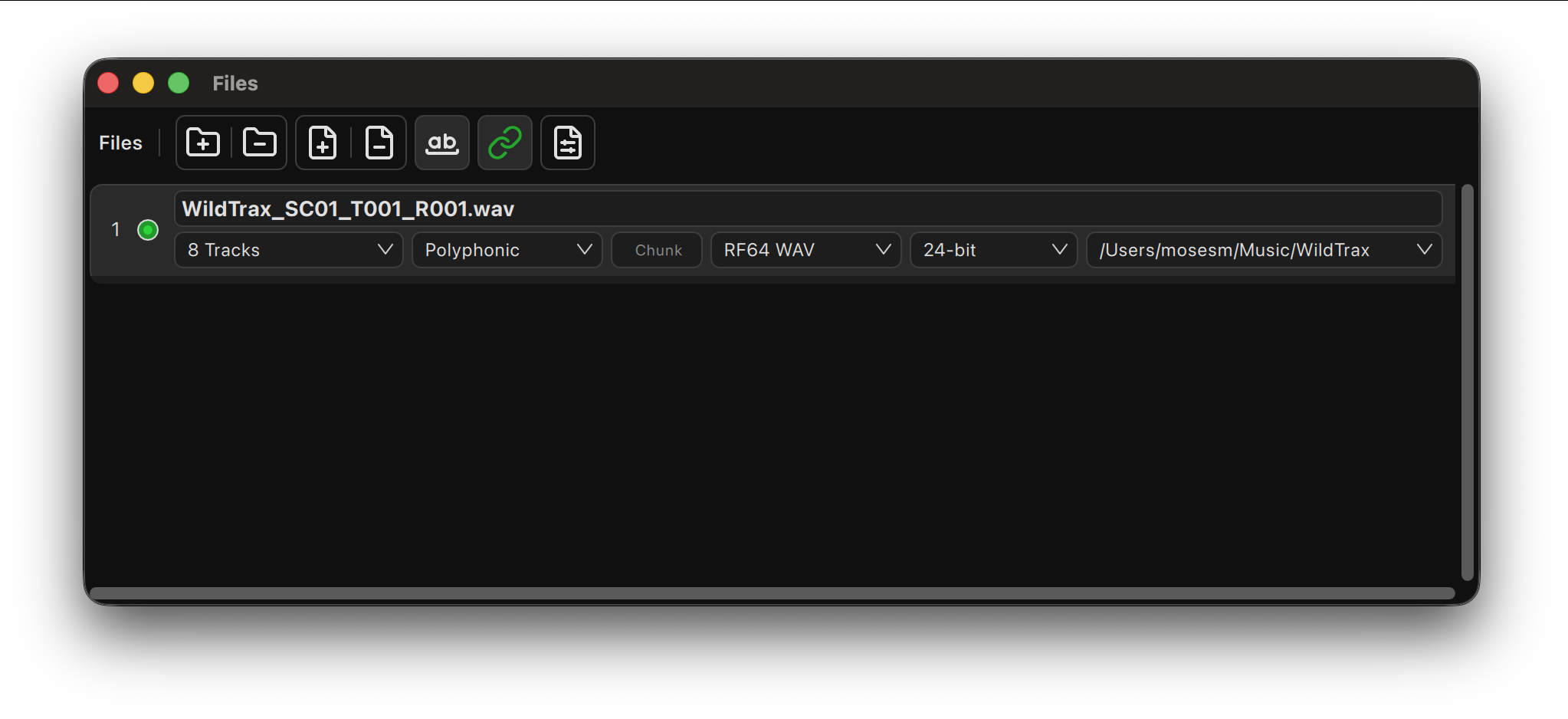
Destinations and Files
- Click Add Destination and choose a folder. Add more destinations to record to several drives at once (a mirror).
- In a destination, click Add File. A file is one recording output: choose which tracks it contains.
- Set each file's format and bit depth (16-bit, 24-bit or 32-bit float). WAV files switch to RF64 automatically past 4 GB.
- Name the file with tokens (below).
Filename Tokens
Click the { } button in a filename field to insert a token at the cursor, or type it.
| Token | Becomes |
|---|---|
{project} {scene} {slate} {take} {roll} {note} |
The metadata fields |
{track} {input} |
Track name, input name |
{tc} {fps} |
Start timecode and frame rate |
{date} {time} |
Date and time |
{year} {month} {day} {hour} {minute} {second} |
Parts of the date and time |
Date, time and timecode tokens all use the first sample of the take, so every file in a take matches, and matches the timecode written inside it.
Example: {scene}_{take}_{tc}.
Files Toolbar

| Control | What it does |
|---|---|
| Add / Remove Destination | Add a recording folder, or remove the selected one |
| Add File / Remove Files | Add a file to a destination, or select files to remove |
| Expand Tokens | Show file names with tokens filled in |
| Auto-Arm | Arm tracks automatically when they're assigned to a file |
| File Size/Duration Limits | Split recordings by file size, duration or both |
Tips
- Set destinations and names before recording, and keep naming consistent across a production.
- Set limits for long takes so files stay a manageable size.
- Turn on Preferences → General → Auto-stop recording when disk is full, so a take ends cleanly before a drive fills up.
I/O Matrix Panel
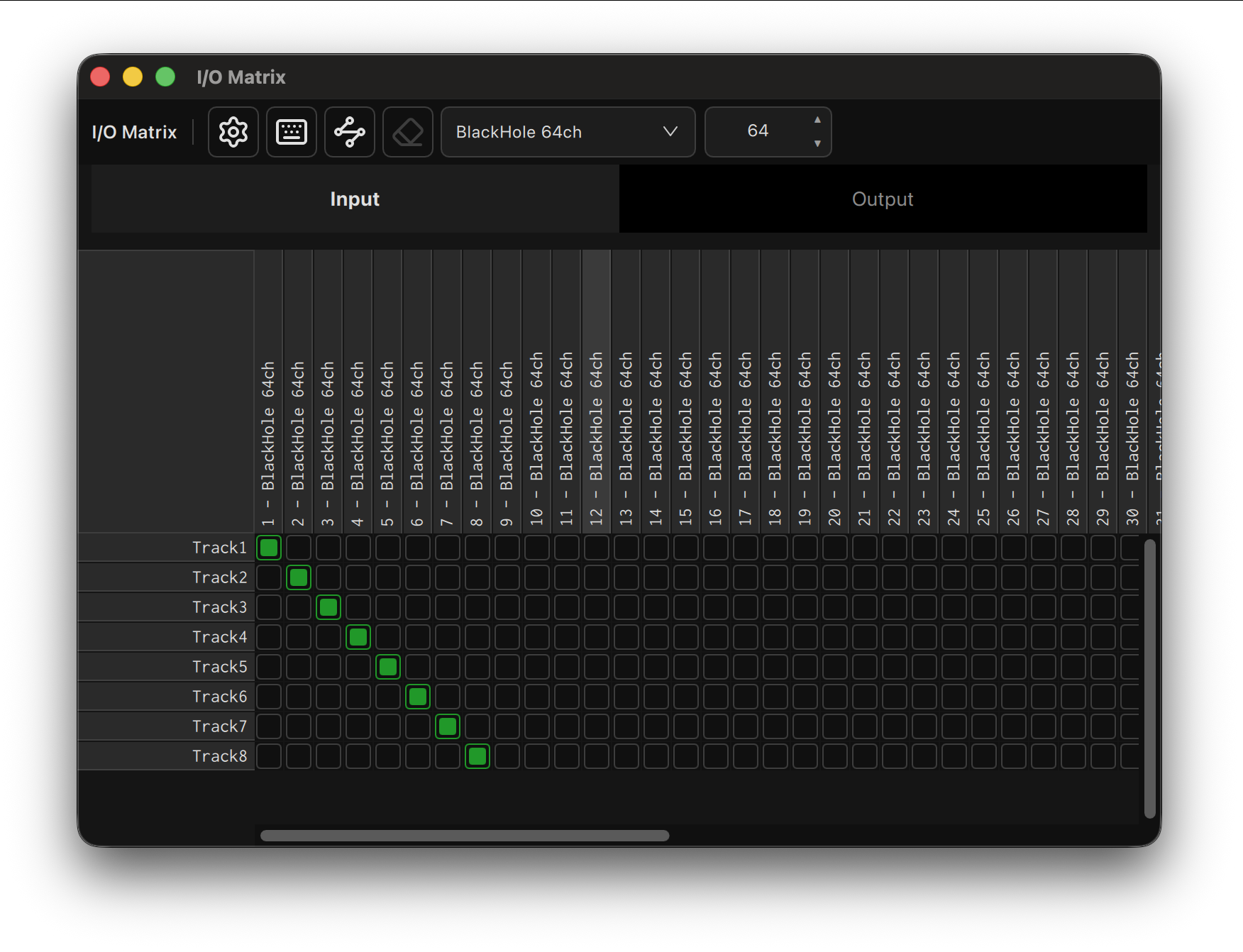
The I/O Matrix routes audio in and out of WildTrax. Switch between its Input and Output tabs at the top of the panel.
Input
The grid connects your device's inputs to WildTrax tracks. Click a cell to patch that input to that track; click again to remove it.
- Option-click patches a diagonal: consecutive inputs to consecutive tracks in one go.
- An input can feed more than one track, for a backup or safety track.
- Input names are per project; name them after your sources (Boom, Lav 1).
Output
The Output tab routes WildTrax's monitoring and playback to your output device's channels: headphones, speakers, IFB or transmitters.
Playback sources (the Player, Playlist, Sample Pad, the LTC Generator and the Signal Generator's live output) each choose their outputs from their own routing grid.
Virtual Inputs and Outputs
You can set more matrix channels than your device has, to patch ahead of time. These virtual channels are marked ◌ and carry no audio until a device with enough channels is connected.
Toolbar

| Control | What it does |
|---|---|
| Open Device Settings | Open Preferences → Device |
| Hover shortcuts | Show the matrix's mouse and keyboard shortcuts (Input tab) |
| Name tracks after their input | Copy each input's name to the tracks it feeds (Input tab; locked while recording) |
| Reset all input / output names | Clear the names you've typed. Dante names, if any, come back |
| Show Dante channel names | Show the names read from your Dante device (Dante devices only) |
| Re-scan for Dante channel names | Read the names from the Dante network again (Dante devices only) |
| Device and channel count | Choose the device, and how many channels the matrix shows. Channels beyond the device's own are virtual |
Tips
- For Dante and MADI, make sure your network routing matches the matrix.
- Routing and names are saved in your project.
Snapshots Panel
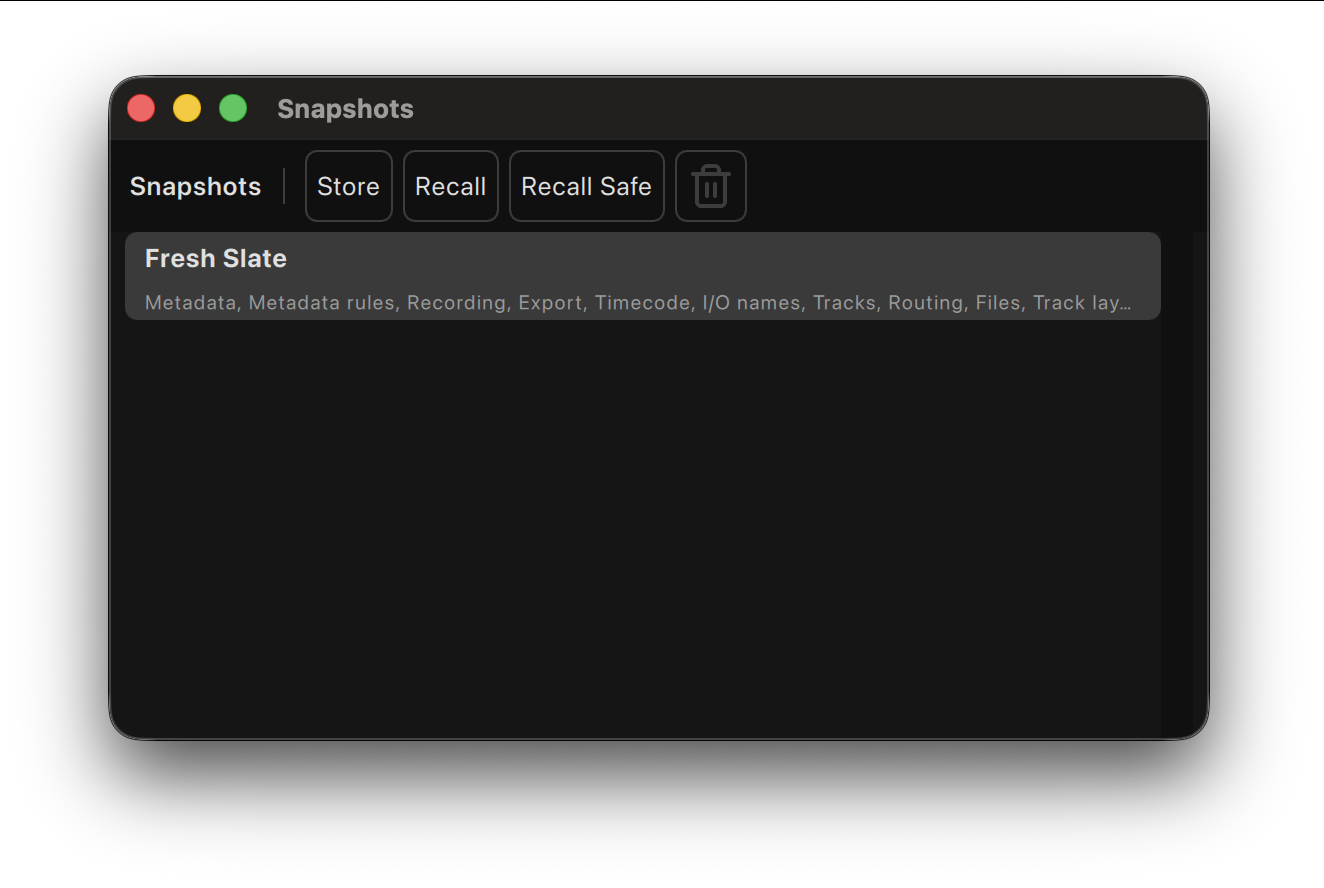
Snapshots save a chosen set of settings under a name, so you can bring them back later: a scene setup, a different cast's track names, a second unit.
Store
Click Store and tick exactly which settings go into the snapshot. Snapshots can include:
- Metadata (scene, slate, take, roll, notes) and metadata rules
- Tracks, routing and files
- Recording settings, export limits, sample rate
- Timecode, monitoring and LTC settings
- Meter and track layout settings, I/O names
- Sample Pad and Playlist
Storing over an existing snapshot replaces it, starting from the settings it already had ticked.
Recall
Select a snapshot and click Recall. WildTrax shows what will change first, then applies it exactly as if you had made the changes by hand. Snapshots can't be recalled while recording.
Recall Safe
Recall Safe picks settings that no recall will ever change, whatever a snapshot contains.
Managing Snapshots
Double-click a snapshot to rename it. Select one and click the trash button to delete it.
Review and Delivery
Library Panel
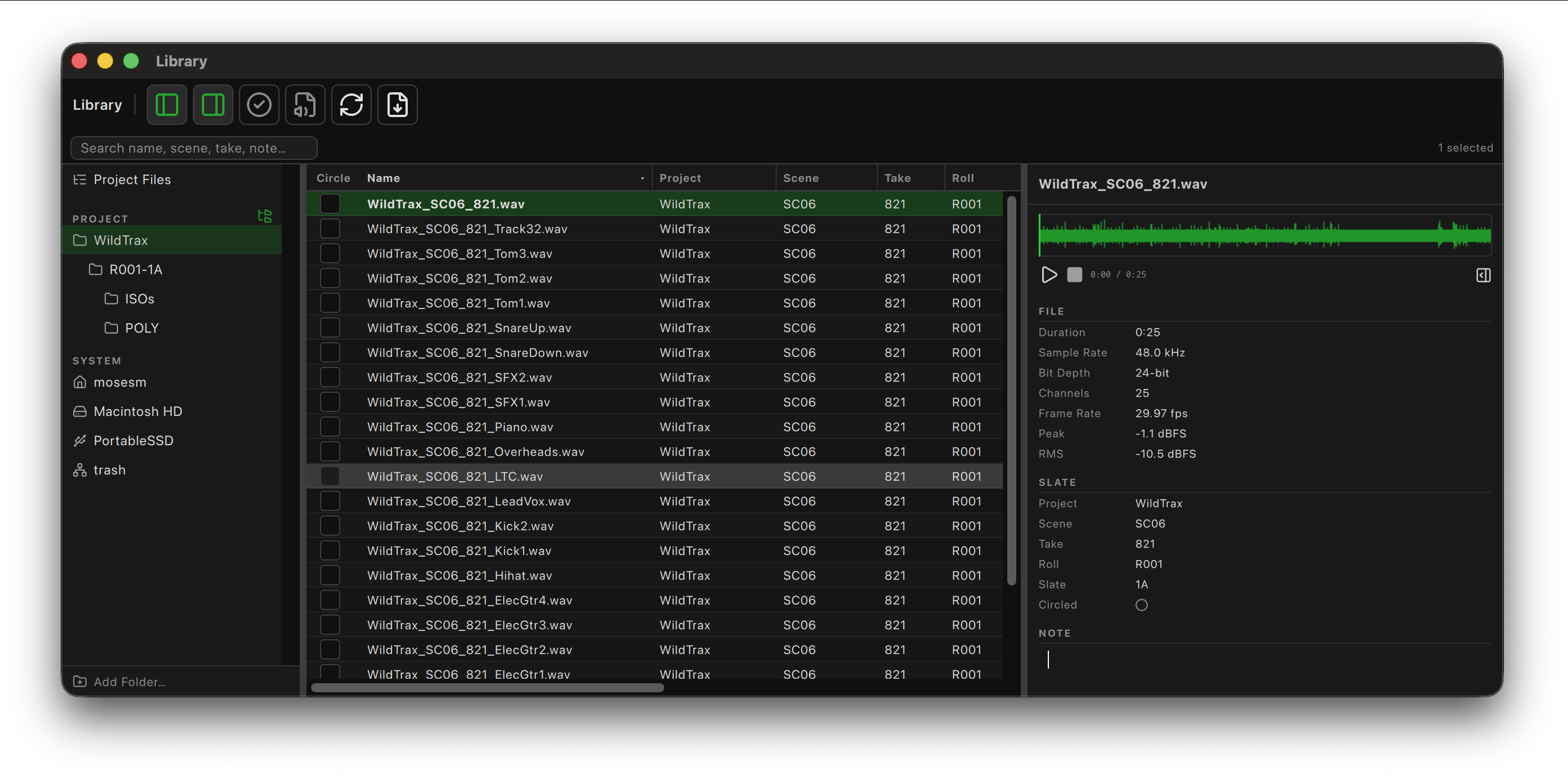
The Library is new in WildTrax 2027: one place to browse, search, review and fix your recordings, from this project or any folder or card.
Locations
The sidebar lists where your files are:
- Project Files: everything this project has recorded.
- Folders you add with Add Folder.
- Cards and drives that are connected.
Right-click a location for more options.
⚠️ Erase Card… permanently deletes everything on an SD card. Right-click the card and choose “Erase Card…”
WildTrax shows what's on it and asks you to confirm.
File List
- Search by name, scene, take or note.
- Show circled takes only, or only audio files while browsing a folder.
- Sort by any column. Edit scene, take and other metadata directly in the list.
- Export the visible list as CSV.
Inspector
Select a file to see its details on the right:
- A preview waveform you can play (space bar) without leaving the Library.
- File details: duration, sample rate, bit depth, channels, frame rate, start timecode, and the file's Peak and RMS once it has been played or scanned.
- Metadata you can edit in place.
- Raw Metadata: every tag in the file's header (BWF, iXML and more). Click a value to copy it, or Copy All.
Several Files at Once
Select several files to circle them all, set a note for all of them, or choose Batch Edit to change Project, Scene, Take, Roll, Slate or Note across the selection. Batch Edit shows what the files share, and what will change, before you apply it. Files that can't hold metadata (such as MP3) are left alone.
Right-Click Menu
- Reveal in Finder, Copy Path
- Circle / Uncircle
- Batch Edit
- Send to Timeline, stacked (one track per channel) or strung out (end to end)
- Toolkit tools that work on files, such as the Clip & Peak Detector
Toolbar
| Control | What it does |
|---|---|
| Show locations | Show or hide the sidebar |
| Show inspector | Show or hide the file details on the right |
| Show circled takes only | Filter the list to circled takes |
| Show audio files only when browsing | Hide other files while browsing a folder |
| Refresh | Re-read the current location |
| Export visible files as CSV | Save the list as it's shown |
Player Panel
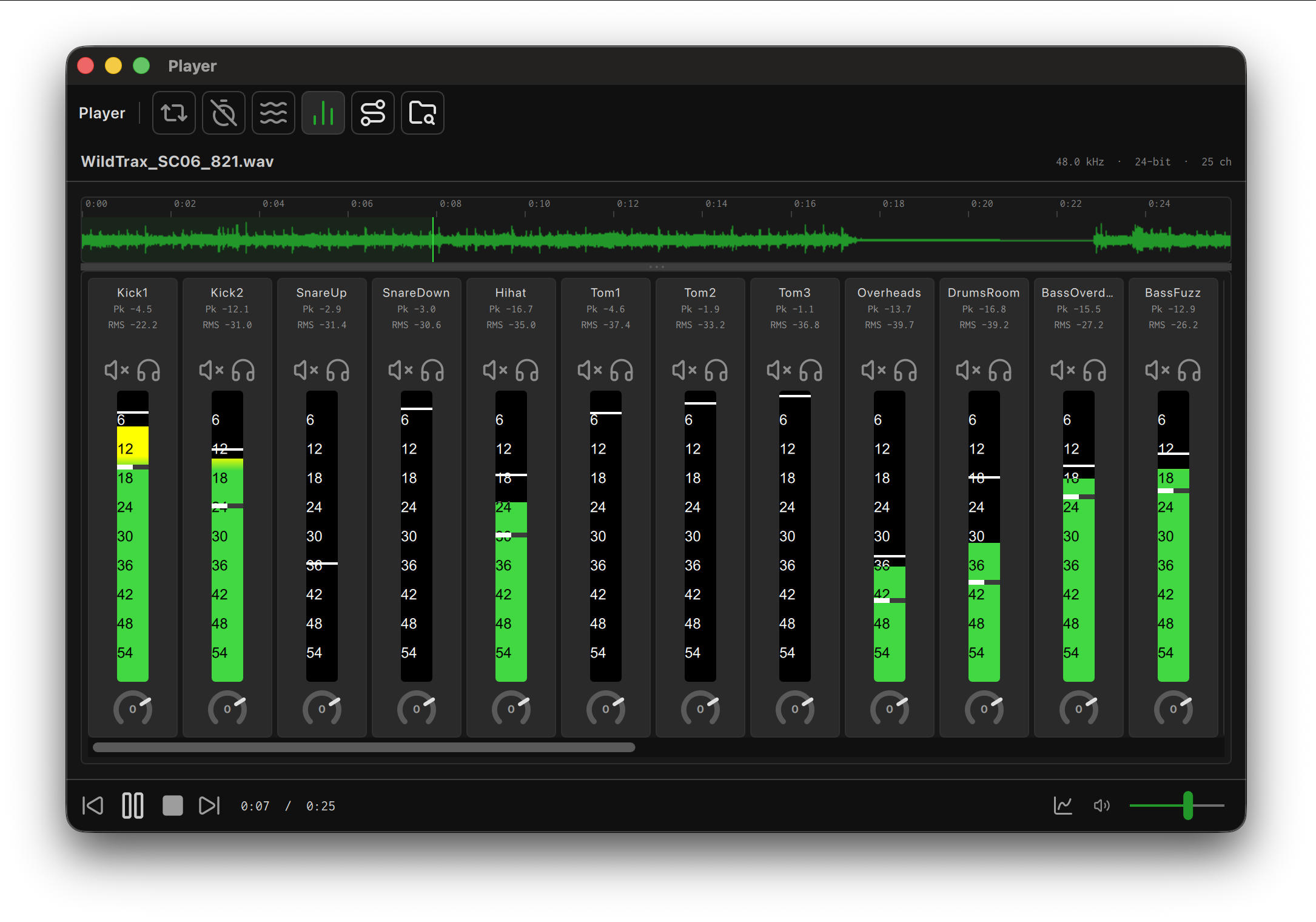
The Player reviews one file at a time: waveform, transport, and a mixer with a strip per channel. It follows the file selected in the Library, and the Library's preview can send a file to the full Player.
Waveform
The waveform shows the whole file with timecode. Show it summed or per channel. Click to move the playhead.
Mixer
Each channel has:
- Gain, Mute and Solo. These change only what you hear; the file is untouched.
- A live meter with peak and RMS.
- The file's whole-channel Peak and RMS (Pk / RMS).
- An LTC badge on channels carrying timecode. With auto-mute on, those channels are muted so the code doesn't blast your ears.
Show the channels as rows or as vertical columns.
Transport
Play / Pause (space bar), Stop, back and forward 5 seconds, and Loop. Choose where playback goes with the routing grid.
Spectrum
The Show in Spectrum Analyzer button opens the Spectrum Analyzer beside the Player, showing the file at the playhead.
Toolbar
| Control | What it does |
|---|---|
| Loop playback | Repeat the file |
| Auto-mute LTC channels | Mute channels carrying timecode |
| Show each channel's waveform | Per-channel waveforms instead of one summed waveform |
| Mixer layout: rows or columns | Show the channel strips as rows or vertical columns |
| Output routing | Choose where playback goes |
| Reveal in Finder | Show the file in Finder |
Sound Report Panel
The Sound Report panel builds your report for post from the files themselves. Every take appears automatically, with its metadata, timecode and file details, ready to edit and export.
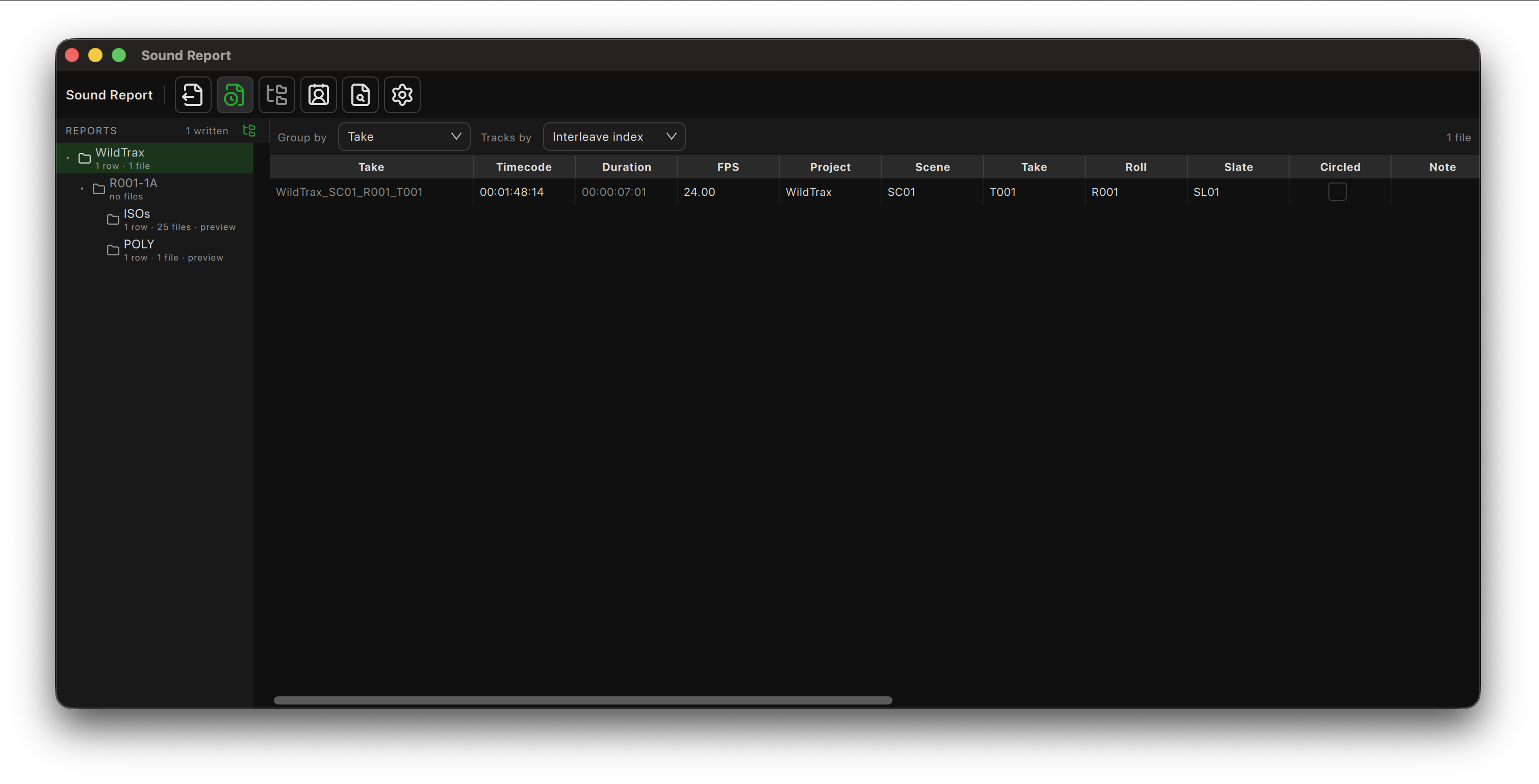
Grouping
Group by File, Take, Scene, Roll, Slate, Project, Folder or Circled. Takes are grouped using the take ID in each file's iXML, so files from one take stay together.
Editing
Click any cell to edit scene, slate, take, notes and the other fields. Changes are written back into the files' metadata. MP3 files appear as read-only rows.
Exporting
Click Export to save the report as CSV or PDF. Turn on Auto-save to write the report after every take; in Preferences → Sound Report you can also save a PDF alongside the CSV each time.
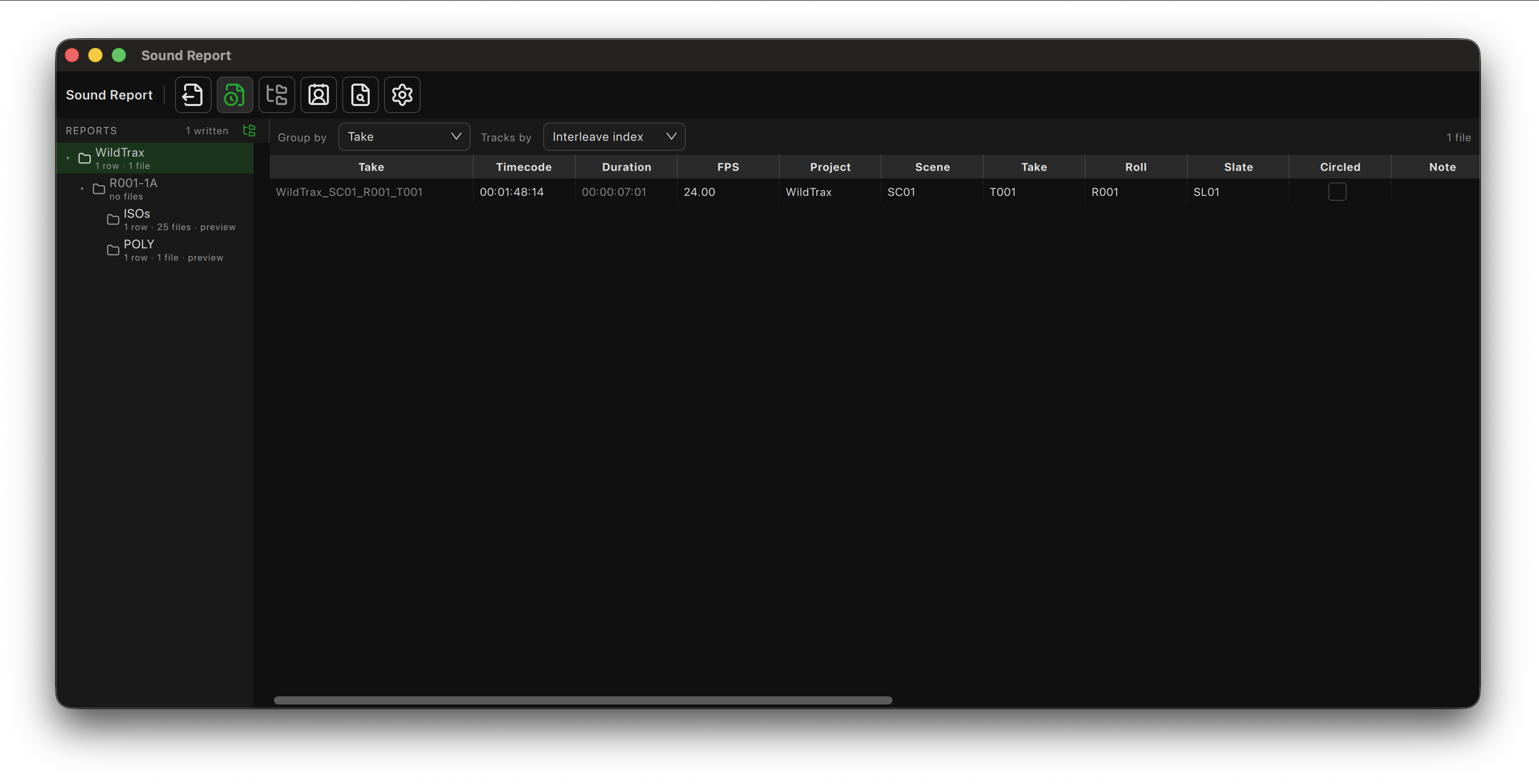
The PDF preview shows the pages live and lets you set:
- Orientation, paper size and text size.
- Your logo in the header (Basic plan and up). Demo reports carry the WildTrax logo.
- Track icons next to track names.
Track columns match the CSV, and spill onto extra pages when they don't fit.
Toolbar

| Control | What it does |
|---|---|
| Export sound report | Save as CSV or PDF |
| Auto-save sound report | Write the report after each take |
| Include files from subfolders | Cover subfolders in this report |
| Contact details | Your details for the report header |
| PDF preview | Page setup and logo, with a live preview |
| Open Sound Report Settings | Open Preferences → Sound Report |
Tips
- Review the report at the end of each day before delivering.
- Keep notes clear and consistent; they save time in post.
Timeline Panel
The Timeline is new in WildTrax 2027. It's where files are assembled into new ones: combining isos from several recorders into one poly file, stitching backup segments together, splitting a poly file, or pulling out an exact range. Your source files are never modified.
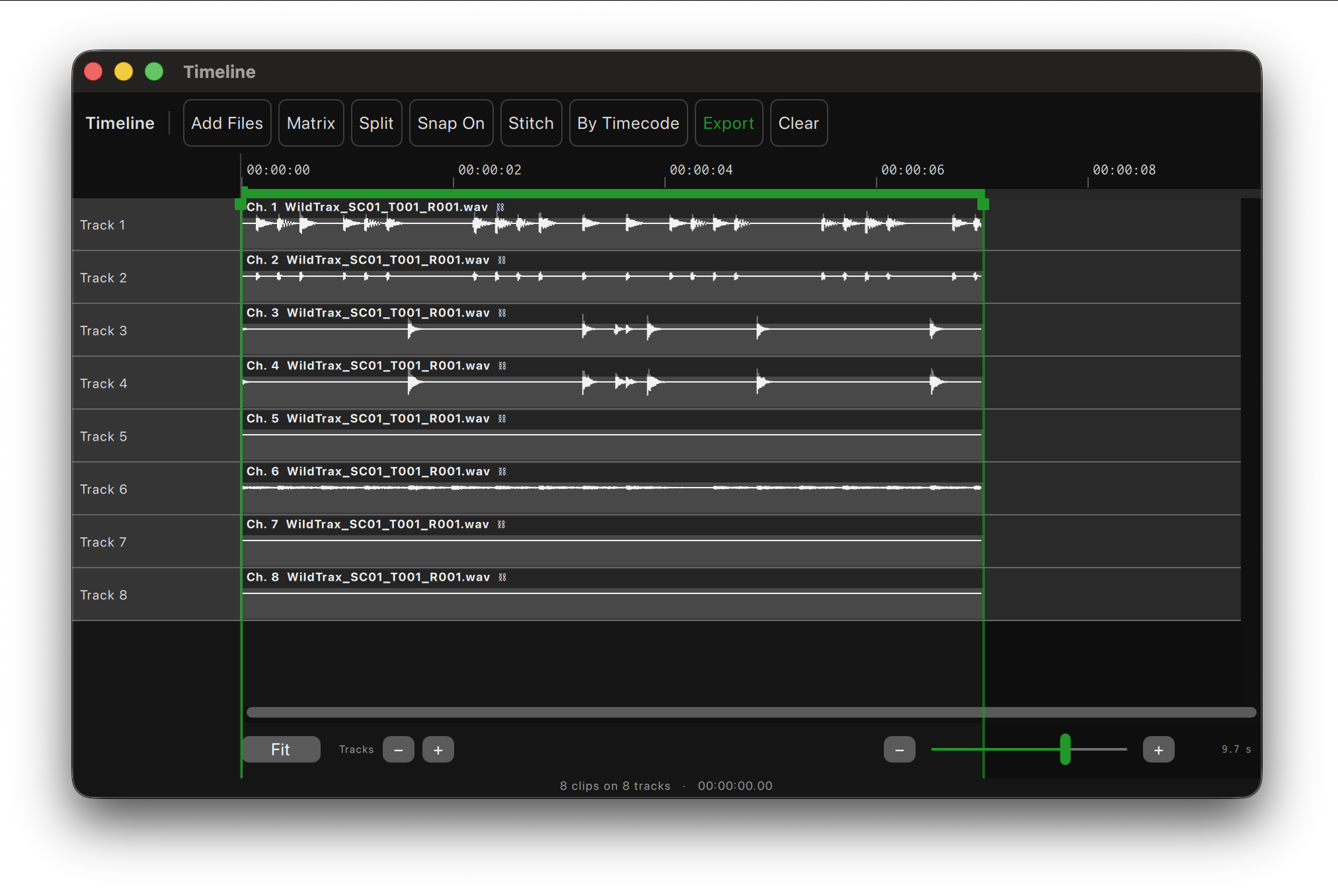
Getting Files In
- Add Files in the toolbar, or drag files onto the Timeline.
- From the Library, right-click files and choose Send to Timeline:
- Stack Tracks: each channel on its own track, all starting together (a combine).
- String Out Tracks: files one after another in time (a stitch).
Arranging
The Timeline runs on absolute time: a clip recorded at 10:00:00:00 sits at ten hours.
- Place by Timecode: puts every clip at its recorded timecode; gaps become silence. Use it to line up isos from body-pack recorders against the main recorder.
- Stitch: closes every gap, so clips run end to end in order.
- Snap (S): clips snap to edges, whole seconds and the start.
- Drag clips to move them; drag them up or down to move between tracks. Clips can't overlap on a track.
- Matrix: the same arrangement shown as a table of channels.
Keyboard
| Keys | Action |
|---|---|
| ← → | Nudge the selected clips (Shift for ten times further) |
| ↑ ↓ | Move the selected clips to the track above or below |
| Delete | Remove the selected clips |
| ⌘= / ⌘− | Zoom in / out |
| Shift-Z | Zoom to fit |
| S | Snapping on or off |
A nudge moves by a step that follows the zoom, so it's always a visible amount.
Exporting
The range band on the ruler sets what's exported. It follows the content automatically, or drag its handles to set it by hand.
Click Export to open the export window:
- Range: type exact In and Out timecodes, or choose Follow Content.
- Layout: one mono file per track, or all tracks as one poly file.
- Metadata: when the Timeline holds files from several sources, choose which one supplies project, scene, take and roll.
- A preview lists every file that will be written, before anything is.
Split
Split turns a poly file into separate files, one per channel.
Spectrum Analyzer Panel
The Spectrum Analyzer shows the frequency content of a signal from 20 Hz to 20 kHz. Use it to find hum, RF interference, rumble and problem frequencies.
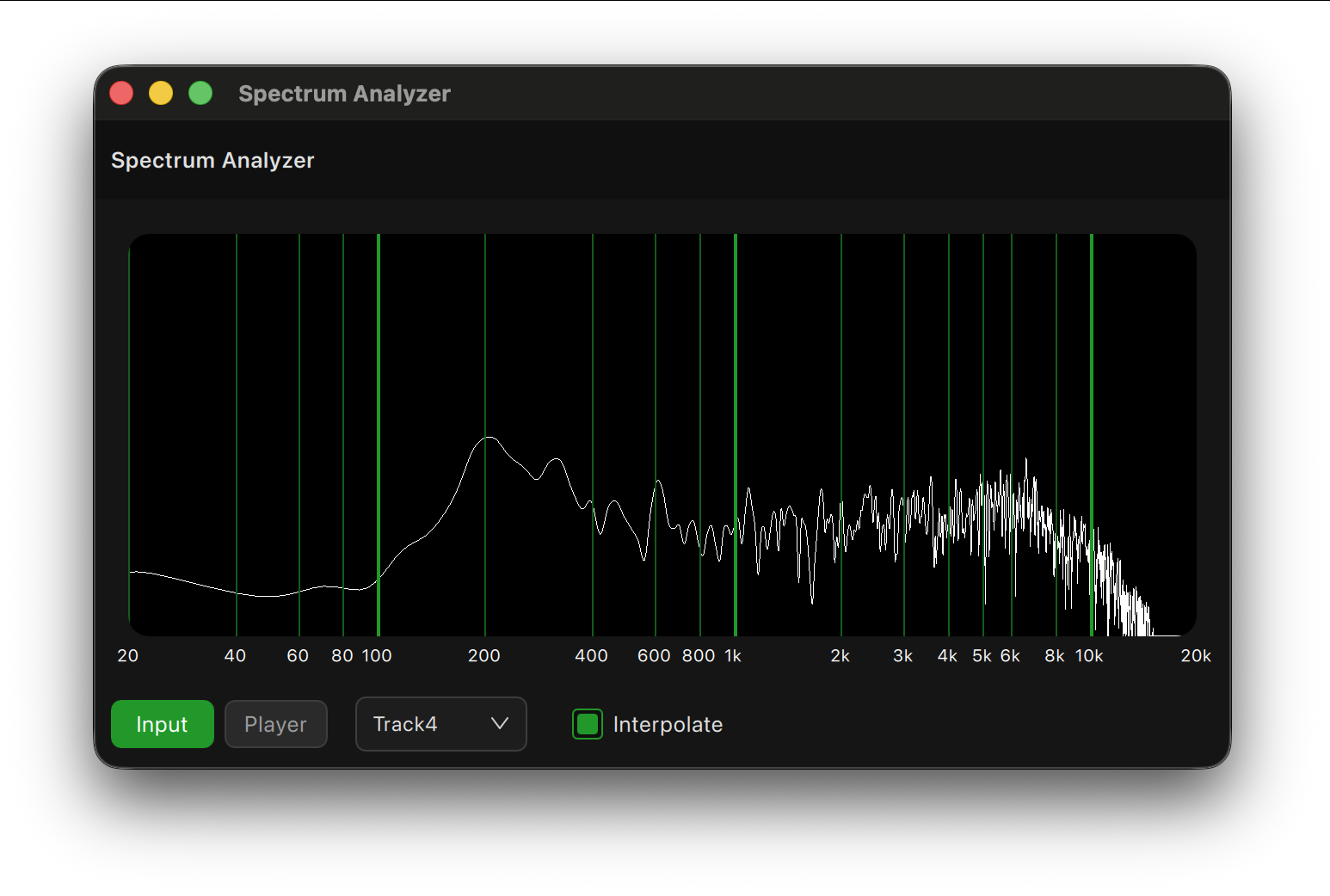
Sources
Choose what to analyze with the buttons at the bottom:
- Input: a live input track, in real time.
- Player: a channel of the file in the Player, at the playhead. It follows playback, seeking and scrubbing, and holds the moment when paused. It analyzes the file itself, so the Player's mute, solo and gain don't change it.
Pick the channel from the menu beside the source buttons. Interpolate smooths the trace.
The Player's Show in Spectrum Analyzer button opens the analyzer on the Player source.
Using It
- RF noise hunting: find interference in wireless systems.
- Room tone: spot resonances in a space.
- Boom and lav: compare the tone of two mics.
- Hum: power-line hum shows as a peak at 50 or 60 Hz and its harmonics.
The analyzer runs separately from recording and doesn't affect it.
Playback
Sample Pad Panel
The Sample Pad plays short audio clips on demand: cues, tones, sound effects or reference files, without another app.
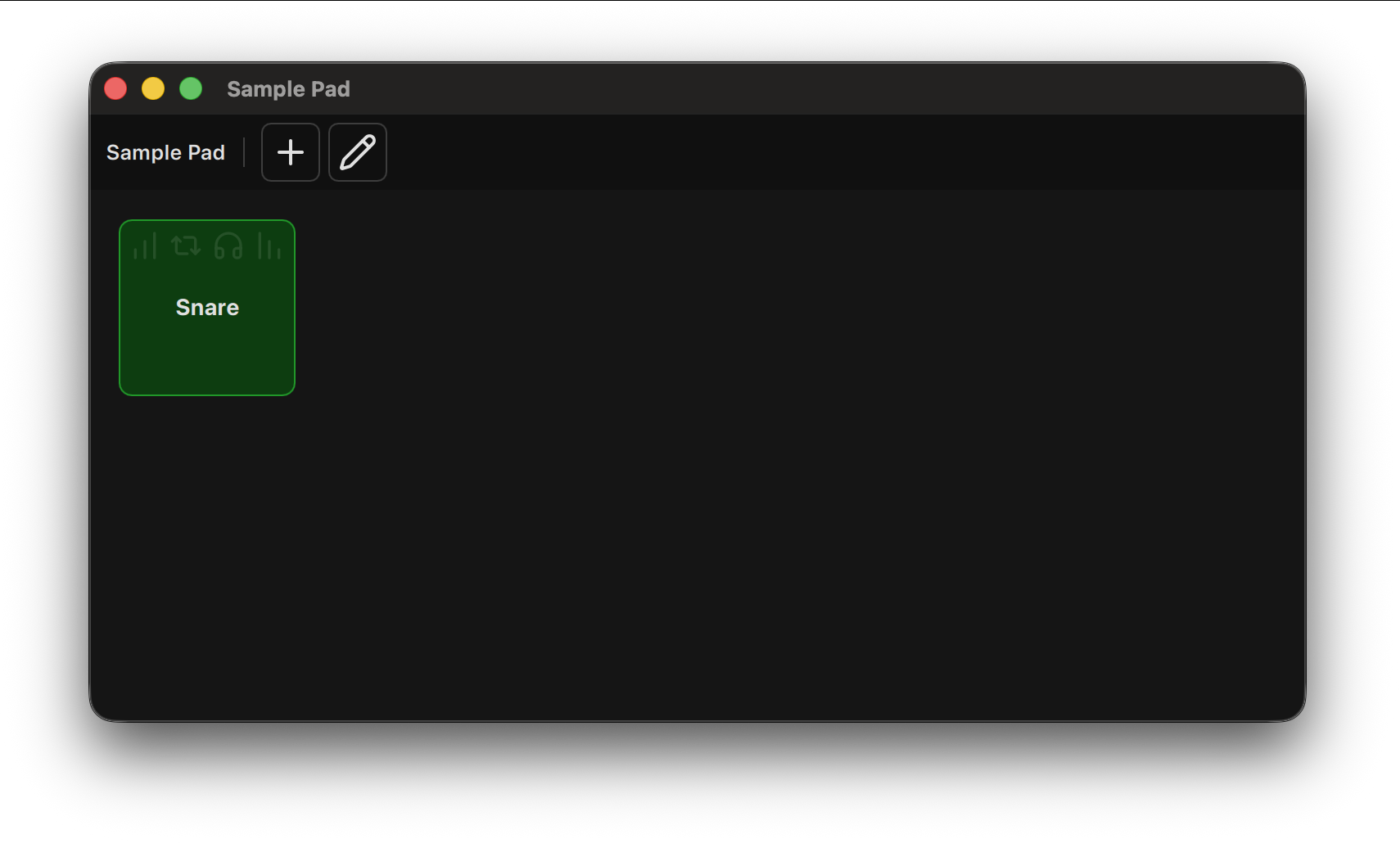
Pads
Each pad holds one audio file. Click a pad to play it; several pads can play at once.
Each pad has:
- A name you can change.
- Loop: repeat until stopped.
- Fade In and Fade Out, with durations set from the pad's right-click menu.
- Solo.
- Its own output routing, chosen from the pad's routing grid.
- A background color.
- Trigger Mode: Latched (click to start, click again to stop) or Momentary (plays while you hold the pad).
Right-click a pad to rename or delete it, or set its color, fade durations, channel routing and trigger mode. Pads can also be fired by remote control (OSC or HTTP); there's no keyboard or MIDI triggering.
Loading Samples
Click Add a New Sample to choose WAV files, or drag WAV files onto the panel; dropping onto a pad puts the new pad in that position. Pads play WAV files only.
Toolbar
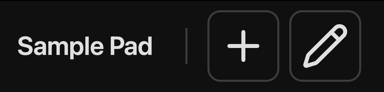
| Control | What it does |
|---|---|
| Add a New Sample | Add pads from WAV files. Shows the limit when your plan's pad count is reached |
| Edit Samples | Edit or remove pads |
Tips
- Test each pad's routing before using it on set or on air.
- Keep sample files in your project folder so they're always found.
- Pads, their files and routing are saved in your project.
Playlist Panel
The Playlist queues and plays files from inside your session.
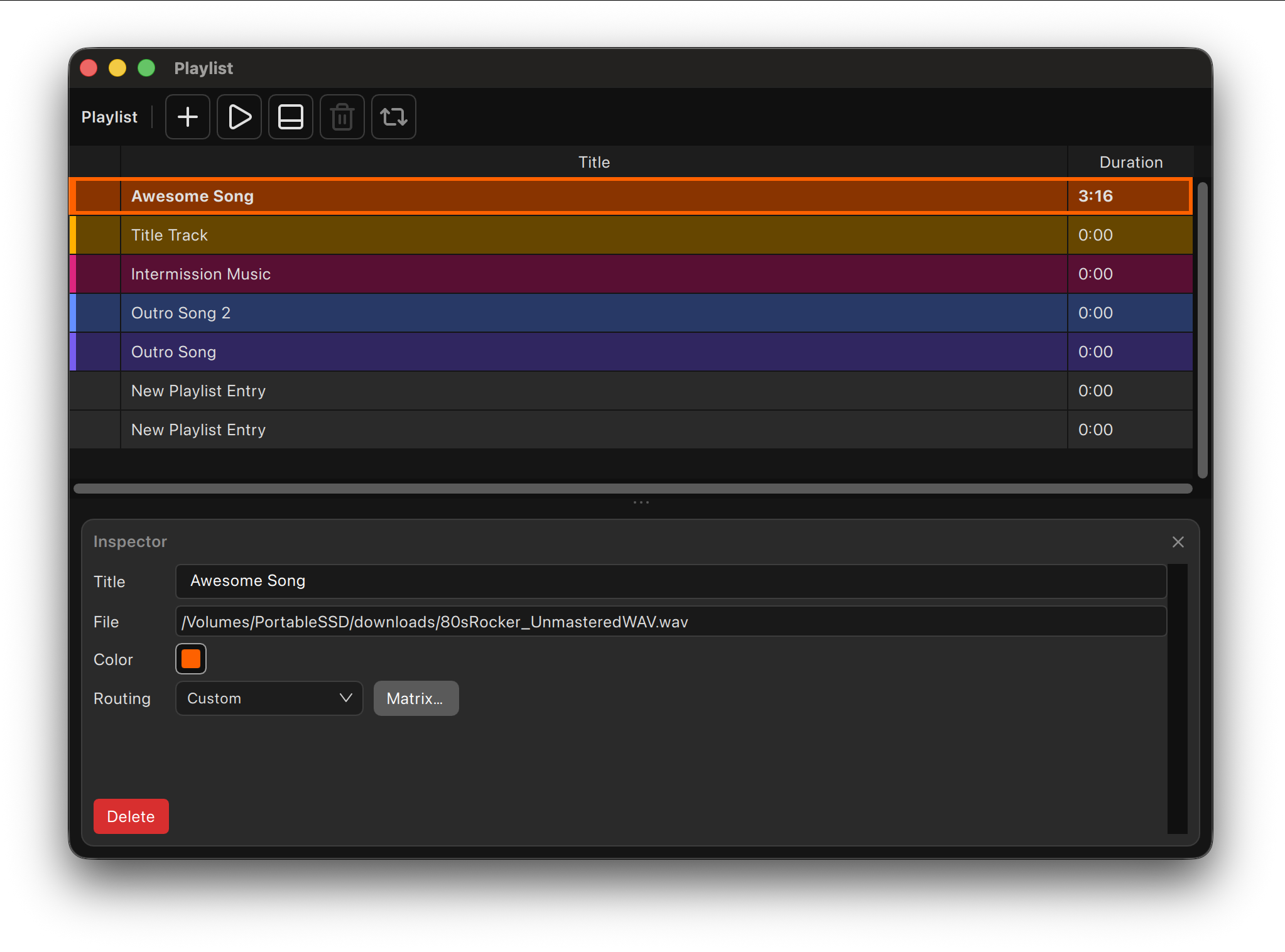
Entries
Each entry shows the file name, duration, and scene and take from its metadata. Add WAV files with Add or by dragging them in. Drag entries to reorder them.
Playback
- Play, stop and loop from the toolbar or each entry.
- Each entry has its own output routing, so it can go to the main mix, headphones or any output.
Inspector
The inspector edits the selected entry: title, file, color and routing mode (Auto, Stereo, Mono Left, Mono Right, Mono Center or Custom). Click Matrix… to see the entry's channel routing in its own window; edit it there in Custom mode.
It sits beside the list, or below it with the toolbar's layout switch. Drag the divider to resize it. Close it with the × in its header, and click the Inspector tab to bring it back.
Toolbar
| Control | What it does |
|---|---|
| Add | Add an entry |
| Play / Stop | Play the playlist, or stop it |
| Inspector beside / below the list | Put the inspector to the right of the list or under it |
| Delete | Remove the checked entries (the files stay on disk) |
| Loop | Repeat the playlist |
Tips
- Check routing before playback on a live or broadcast session.
- The playlist and its routing are saved in your project.
Session Tools
Toolkit
The Toolkit holds utilities for preparing, checking and fixing audio.
Clip & Peak Detector
Scans WAV and RF64 files for clipping and peaks, channel by channel: the peak and RMS level of each channel, how many clips and where the first one is. Export the results as CSV. Open it from the Toolkit, or right-click files in the Library.
Signal Generator
Two modes:
- Write a File: a sine tone, sweep, white or pink noise to a WAV file, at the level, length, sample rate, bit depth and channel count you choose.
- Live Output: a sine tone (with 440 Hz and 1 kHz presets), white or pink noise played out of the outputs you tick. It plays at its own level, whatever the monitor volume, and keeps going when the window closes; Tone out in the status bar shows it's on.
Level is the peak level for tones and the RMS level for noise, in dBFS.
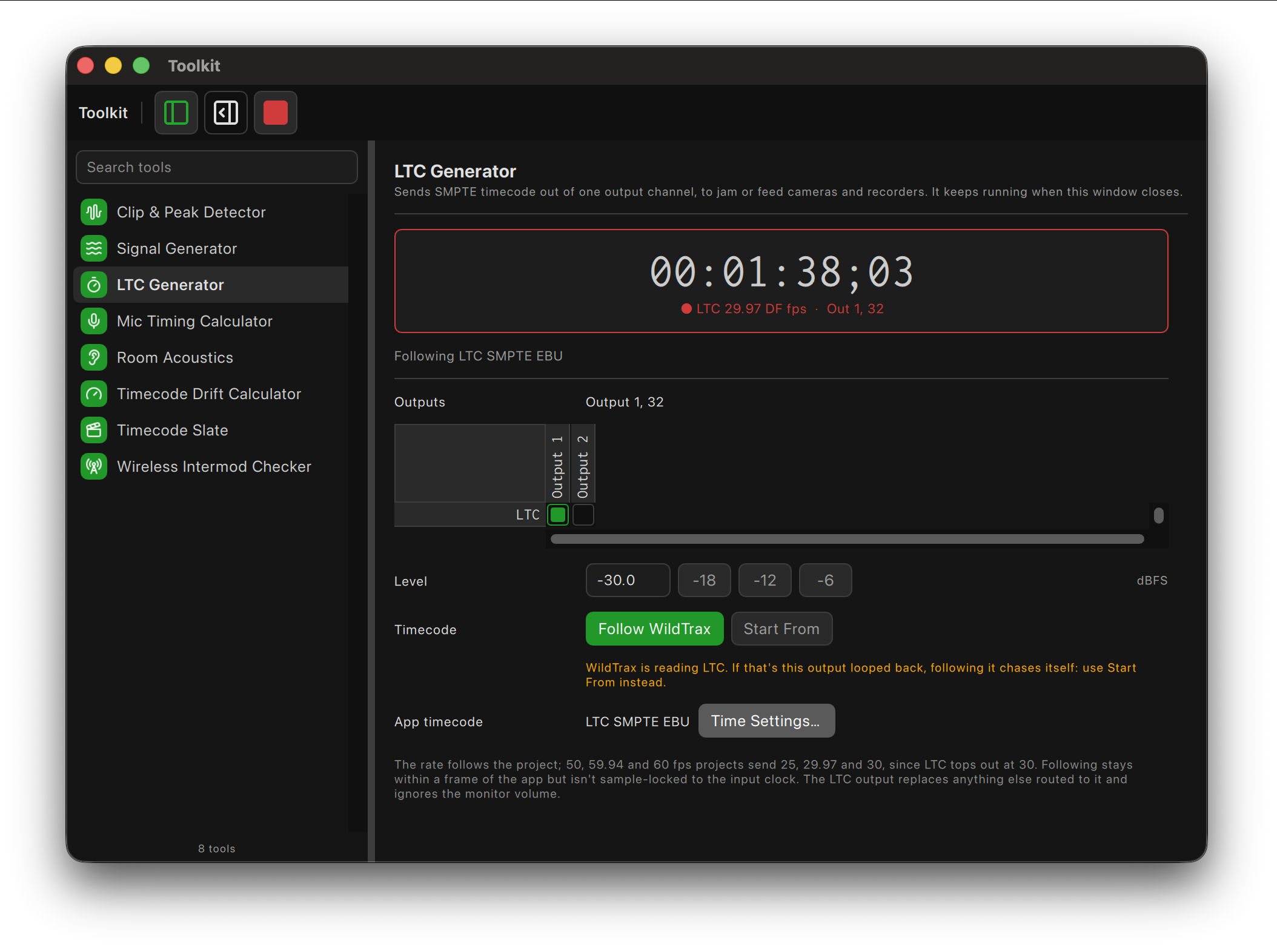
LTC Generator
Sends SMPTE timecode out of the outputs you choose, to jam or feed cameras and recorders.
- Follow WildTrax: sends WildTrax's own timecode, staying within a frame or two.
- Start From: runs free from a start time you set.
The rate follows your project (50, 59.94 and 60 fps projects send 25, 29.97 and 30 fps LTC). It keeps running when its window closes; LTC out in the status bar shows it.
Don't use Follow WildTrax while WildTrax is reading LTC from the generator's own output; use Start From for that.
Python Tools
Python scripts appear in the Toolkit too. WildTrax includes examples:
- Timecode Slate: a big timecode display that turns red while recording.
- Timecode Drift Calculator: how far two clocks can drift apart.
- Room Acoustics: reverb time, critical distance and level at the mic.
- Wireless Intermod Checker: checks a set of wireless frequencies for conflicts.
- Mic Timing Calculator: delay and comb filtering between mics.
See Python Scripting to write your own.
Tile Icons
Right-click a tile to choose its icon: a built-in icon, an emoji or your own image.
Python Scripting
WildTrax includes Python, so you can write tools that read and control the app: calculators, utilities, custom windows and menu commands.
Script Editor
Open the Script Editor from Window → Toolkit → Script Editor to write, open and run scripts. Output and errors appear in its log.
Your Scripts
Scripts you save in your scripts folder (~/Library/Application Support/WildTrax 2027/scripts) appear in the Toolkit as tiles and in the Toolkit menu.
- The first line of a script's description becomes its tile description.
- Give a script an icon with
ICON = "name"near the top: a built-in icon name, an emoji or an image file.
Examples
The Python tools in the Toolkit are examples. Open one in the Script Editor to see how it's built. Saving it makes your own copy, which you can change freely.
Reference
The Python scripting reference lists everything scripts can read and control.
Remote Control
WildTrax can be controlled from other devices on your network: the WildTrax iOS app, Stream Deck, Bitfocus Companion, TouchOSC and your own tools.
Turning It On
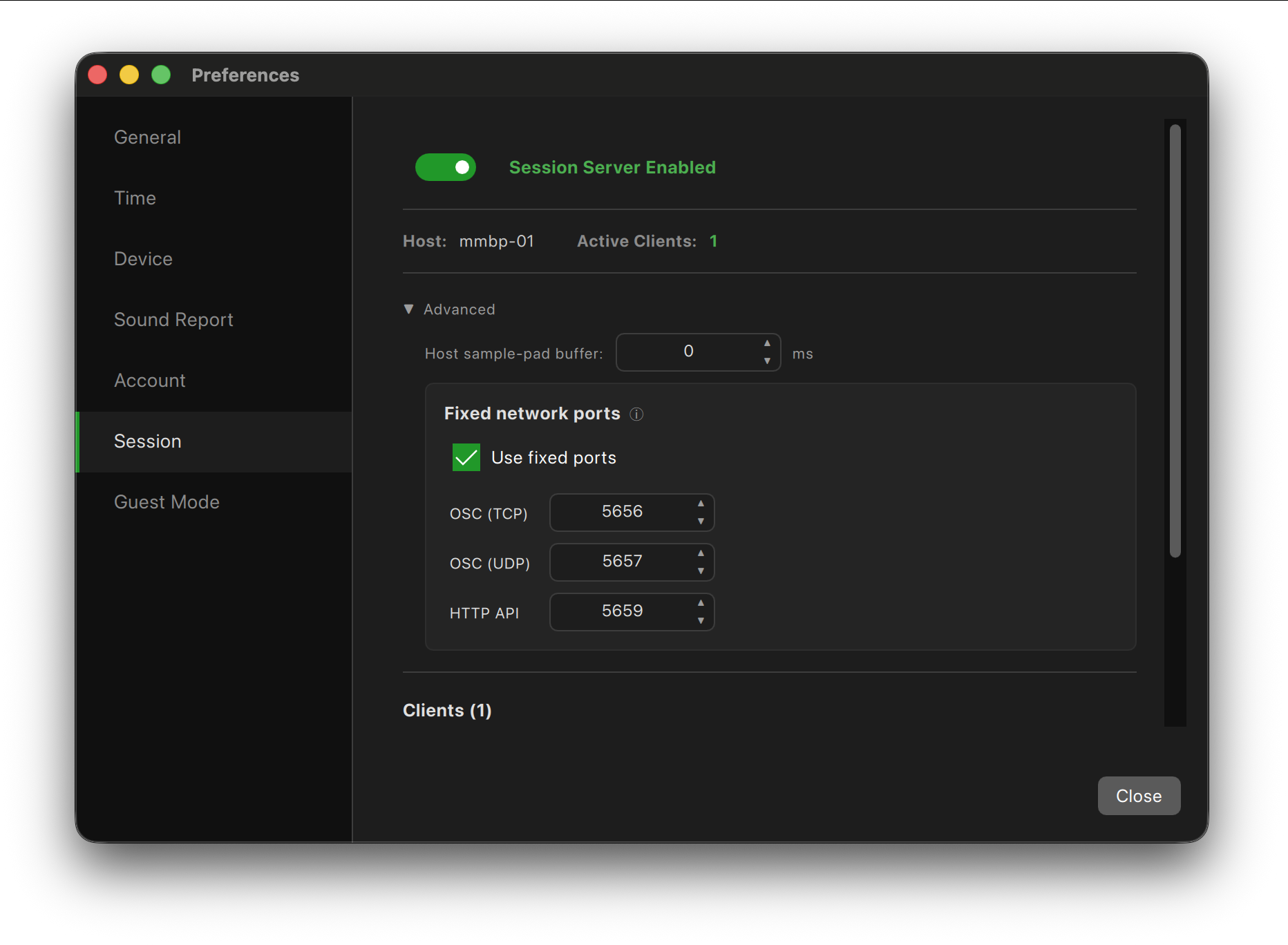
Open Preferences → Session and enable the session server. It offers three services:
- OSC (TCP) and OSC (UDP): for control surfaces and apps.
- HTTP API: for scripts and anything that can make a web request.
Turn on Use fixed ports to keep the same ports between launches; each service needs its own port.
Clients and Permissions
Connected devices appear under Active Clients. For each one you can:
- Allow Read (see state and meters), Write (control the app) and Approve (let in other clients).
- Kick it off.
Auto-Join lets known devices reconnect without asking again.
WildTrax iOS App
The WildTrax iOS app connects to the session server for remote recording control, metadata and monitoring.
Stream Deck and Companion
WildTrax has a Stream Deck plugin and a Bitfocus Companion module, with keys for Record, Stop and False Start, metadata and more. Recording is never a toggle: Record, Stop and False Start are separate keys, and False Start asks for a second press to confirm.
Subscribers can download both from wildtrax.io/downloads. To build your own tools, see the OSC reference and the HTTP API reference.
Guest Mode
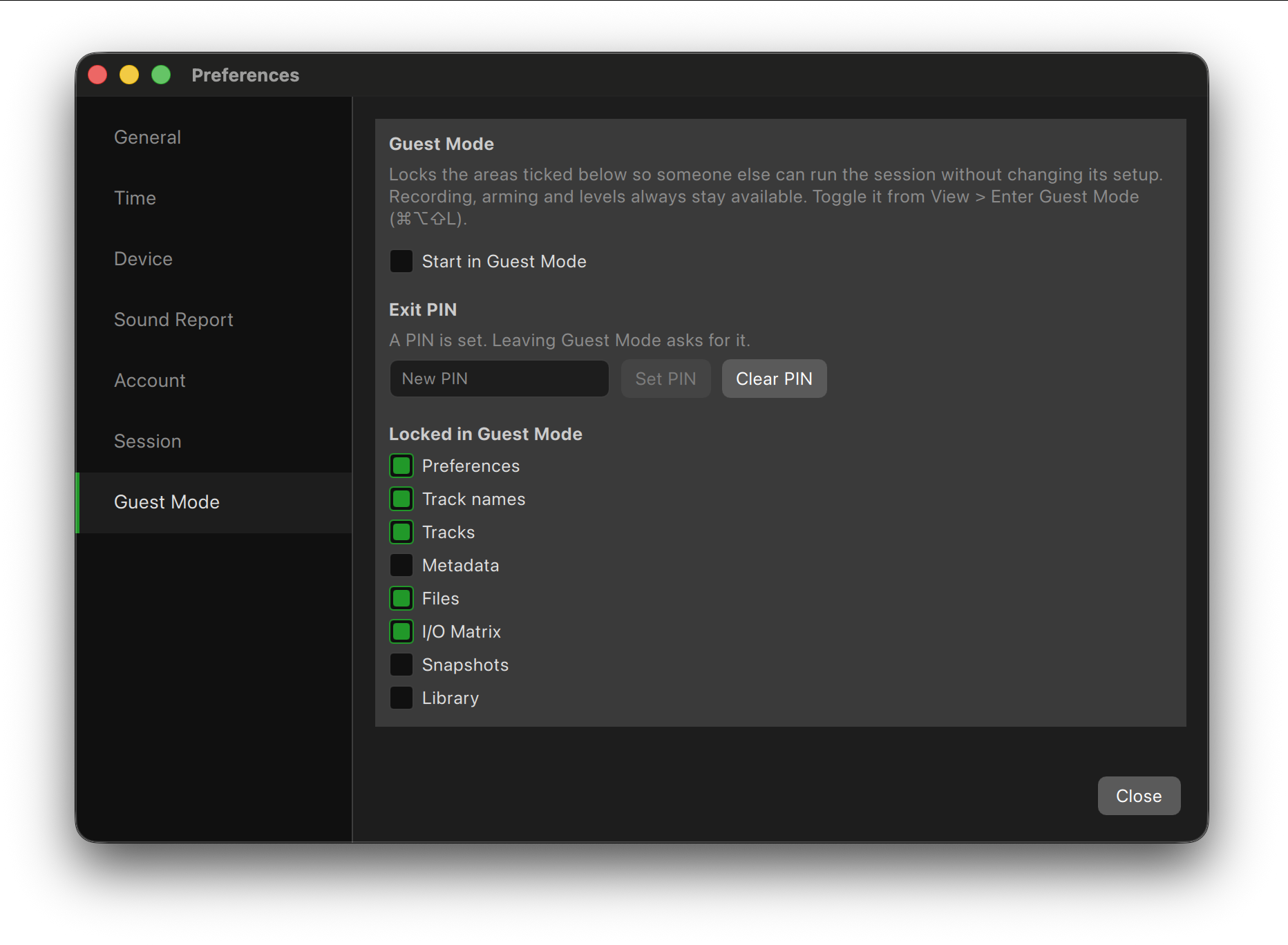
Guest Mode locks parts of WildTrax so someone else can run the session without changing your setup: a second operator, a client or a trainee.
Setting It Up
In Preferences → Guest Mode, tick what's locked:
- Any panels
- Preferences
- Track names
Optionally set an Exit PIN, required to leave Guest Mode. Turn on Start in Guest Mode to open WildTrax already locked.
Using It
- View → Enter Guest Mode (⌘⌥⇧L) locks the ticked areas.
- View → Exit Guest Mode (⌘⌥⇧L) unlocks them, asking for the PIN if one is set.
Locked panels stay visible but can't be changed. Recording, transport and everything not ticked keep working.
Reference
Important Information
WildTrax is built for dependable recording in demanding conditions, but every recording system depends on careful setup and disciplined operation. These practices keep sessions smooth.
System Stability
- Close other apps. Quit browsers, messaging and background utilities that use CPU or disk.
- Disable sleep. Set your Mac never to sleep while recording, and turn off drive spin-down.
Storage
- Watch free space. The status bar shows recording time left on your destinations. Keep at least 50 GB free for a full production day.
- Auto-stop when the disk is full. Turn this on in Preferences → General so a take ends cleanly instead of being cut off.
- Record to SSDs. They write faster and are less prone to dropouts.
- Mirror and back up. Add a second destination to record to two drives at once, and back up at the end of each day.
Hardware and Connectivity
- Use USB 3 or Thunderbolt interfaces, and avoid bus-powered interfaces on large sessions.
- Clock-sync Dante and MADI devices before recording, and use wired Ethernet for networked audio.
- Keep your Mac and interfaces on mains power for long days.
Session Preparation
- Set file naming before recording and keep it consistent across the production.
- Fill in metadata before pressing Record.
- Save your project after changing routing or destinations.
- Do a quick sound check, then record a short test take and check it in the Player: channels, timecode and metadata.
Software
- Keep WildTrax up to date.
- Avoid beta versions of macOS during production.
Backup and Archiving
- Copy your recordings and reports to another drive at the end of each day.
- Keep two independent backups for long-form or location work.
Best Practices
- Restart your Mac before long sessions.
- Check routing and metadata before you roll.
- Watch the meters for clipping.
- Stop recording before disconnecting or powering down any device.
- Don't record to drives that may eject, or to slow network shares.
- When using LTC, Tentacle Sync, Lockit or MTC, confirm sync and frame rate before every setup.
Final Word
WildTrax was made by working sound mixers for real-world production. A few minutes of preparation keeps your sessions reliable, your files organized and your confidence high. Treat your system like any piece of location gear and it will reward you with professional results.
Keyboard Shortcuts
Shortcuts keep your hands on the keyboard during a session. Learn the transport shortcuts first.
Projects
| Action | Shortcut |
|---|---|
| New Project | ⌘N |
| Open Project | ⌘O |
| Save Project | ⌘S |
| Save Project As | ⇧⌘S |
Transport
| Action | Shortcut |
|---|---|
| Record | ⌘⌥R |
| Stop | ⌘⌥S |
| False Start | ⌘⌥F |
Metadata
| Action | Shortcut |
|---|---|
| New Marker | ⌘⇧M |
| Next / previous field | Tab / ⇧Tab |
Panels and Windows
| Action | Shortcut |
|---|---|
| Tracks | ⌘1 |
| Metadata | ⌘2 |
| Files | ⌘3 |
| I/O Matrix | ⌘4 |
| Snapshots | ⌘5 |
| Library | ⌘6 |
| Player | ⌘7 |
| Sound Report | ⌘8 |
| Sample Pad | ⌘9 |
| Playlist | ⌘0 |
| Next / previous tab in a frame | ⌃Tab / ⌃⇧Tab |
| Next / previous frame | ⌃/ ⌃⇧ |
| Enter / Exit Guest Mode | ⌘⌥⇧L |
Player and Timeline
| Action | Shortcut |
|---|---|
| Play / Pause (Player, Library preview) | Space |
| Nudge clips (Timeline) | ← → (⇧ for further) |
| Move clips between tracks (Timeline) | ↑ ↓ |
| Zoom in / out / to fit (Timeline) | ⌘= / ⌘− / ⇧Z |
| Snapping (Timeline) | S |
Timeline shortcuts work while the Timeline has focus.
App
| Action | Shortcut |
|---|---|
| Preferences | ⌘, |
| Send Feedback | ⌘⇧F |
| Quit WildTrax | ⌘Q |
Troubleshooting and FAQ
If something doesn't go as expected, these are the common fixes.
WildTrax doesn't see my audio interface
- Make sure it's connected and powered on.
- Check it appears in System Settings → Sound.
- Choose it in Preferences → Device.
- Try another cable or port.
No level on the meters
- Check the input is patched to the track in the I/O Matrix.
- Check the gain on your interface.
- Check Preferences → Device is set to the right input device.
WildTrax switched to another device
If your device disconnects, WildTrax falls back to another one and tells you. It switches back by itself when your device returns, never in the middle of a take.
Files aren't being written
- Check the destination drive has free space and isn't read-only.
- Make sure WildTrax has permission to write to the folder (System Settings → Privacy & Security).
- Check the destinations and files in the Files panel.
Metadata is missing from my files
- Fill in metadata before recording.
- Fix it after recording in the Sound Report or the Library; changes are written back into the files.
- MP3 files can't hold this metadata; use WAV.
Timecode isn't locking
- Check the time source in Preferences → Time.
- Make sure the frame rate matches the camera or generator.
- For LTC, check the right input channel is used and the signal is healthy in the Player or Spectrum Analyzer.
- For Tentacle Sync or Lockit, click Scan and check the device shows as locked.
WildTrax isn't responding
- Quit and reopen WildTrax. Your unsaved changes are offered back when it opens.
- Disconnect and reconnect your interface.
- Restart your Mac.
Reporting a problem
Use Help → Send Feedback (⌘⇧F) to send a report from inside the app, or email info@haltertechnical.com with your Mac model, macOS version and what happened. The Log panel shows what WildTrax was doing, which helps us find the cause.
Legal
Software License Agreement
PLEASE READ THIS SOFTWARE LICENSE AGREEMENT ("LICENSE") CAREFULLY BEFORE USING THE WILDTRAX SOFTWARE. BY USING THE WILDTRAX SOFTWARE, YOU AGREE TO BE BOUND BY THE TERMS OF THIS LICENSE. IF YOU DO NOT AGREE TO THESE TERMS, DO NOT INSTALL AND/OR USE THE SOFTWARE.
IMPORTANT NOTE: This software may be used to record, modify, publish, or distribute materials. You are licensed to use it only for legally authorized purposes, including materials for which you own the rights or have obtained appropriate permissions. If you are uncertain about your rights, consult legal counsel.
1. General
A. The WildTrax software, including all related companion apps, third-party software, documentation, interfaces, fonts, and data provided with this License (collectively, "WildTrax Software") is licensed, not sold, to you by Halter Technical, Inc. ("Halter Technical") for use under this License. Halter Technical and its licensors retain ownership of the WildTrax Software and reserve all rights not expressly granted to you.
B. Halter Technical may, at its discretion, release updates or upgrades to the WildTrax Software. These updates may be provided for free up to, but not including, the next major release of the software. Updates may not include all features available in newer versions or models of hardware.
C. Intellectual property rights in any content accessed through the WildTrax Software remain with their respective owners. This License does not grant you any rights to such content.
2. Permitted License Uses and Restrictions
A. License Grant. Subject to the terms of this License, you are granted a limited, non-transferable, non-exclusive license:
- To download, install, and use one (1) copy of the WildTrax Software on a computer you own or control for personal or commercial use.
- If you are a business or educational institution, to install and use the software on a single shared computer or by a single individual on multiple computers owned or controlled by your organization.
B. Subscription and Access. WildTrax Software is available under different subscription tiers, which grant access to varying levels of functionality. Your use of the software is subject to the terms of your selected subscription plan.
C. Restrictions. You may not:
- Install, use, or run the WildTrax Software on a non-supported operating system.
- Rent, lease, lend, sell, redistribute, or sublicense the WildTrax Software.
- Copy, decompile, reverse engineer, disassemble, modify, or create derivative works based on the WildTrax Software.
- Use the WildTrax Software for any illegal or unauthorized purpose.
D. Third-Party Software. The WildTrax Software may include third-party components. Halter Technical is not responsible for maintaining, updating, or supporting third-party software.
3. Consent to Use of Data
A. Diagnostic and Usage Data. By using the WildTrax Software, you agree that Halter Technical may collect, store, and use diagnostic, technical, and usage data related to your device, operating system, and application performance. This data helps improve the software and provide support services. Data will be collected in a manner that does not personally identify you unless explicitly consented to.
B. Privacy Policy. Your personal data will be handled in accordance with Halter Technical's Privacy Policy, available at haltertechnical.com.
4. Services and Third-Party Content
A. The WildTrax Software may enable access to online services or third-party content. Use of such services may require internet access and agreement to additional terms. Halter Technical does not guarantee the availability or accuracy of any third-party services.
B. By using these services, you agree that Halter Technical is not responsible for any content that may be found offensive or objectionable. Use of third-party content is at your own risk.
C. Halter Technical reserves the right to change, suspend, or terminate any online services associated with the WildTrax Software at any time without notice.
5. Termination
This License is effective until terminated. Your rights will terminate automatically if you fail to comply with any term(s) of this License. Upon termination, you must cease all use of the WildTrax Software and destroy any copies in your possession.
6. Disclaimer of Warranties
A. WILDTRAX SOFTWARE AND RELATED SERVICES ARE PROVIDED "AS IS" WITHOUT WARRANTY OF ANY KIND. HALTER TECHNICAL DISCLAIMS ALL WARRANTIES, INCLUDING BUT NOT LIMITED TO MERCHANTABILITY, FITNESS FOR A PARTICULAR PURPOSE, AND NON-INFRINGEMENT.
B. HALTER TECHNICAL DOES NOT WARRANT THAT THE SOFTWARE WILL BE ERROR-FREE, UNINTERRUPTED, OR COMPATIBLE WITH ALL HARDWARE OR SOFTWARE CONFIGURATIONS.
C. IN NO EVENT SHALL HALTER TECHNICAL BE LIABLE FOR ANY DAMAGES RESULTING FROM THE USE OR INABILITY TO USE THE WildTrax SOFTWARE.
7. Limitation of Liability
A. TO THE MAXIMUM EXTENT PERMITTED BY LAW, HALTER TECHNICAL SHALL NOT BE LIABLE FOR INDIRECT, INCIDENTAL, SPECIAL, OR CONSEQUENTIAL DAMAGES ARISING OUT OF THE USE OF THE SOFTWARE.
B. IN NO EVENT SHALL HALTER TECHNICAL'S TOTAL LIABILITY EXCEED THE AMOUNT YOU PAID FOR THE SOFTWARE.
8. Export Control
You may not use or export the WildTrax Software in violation of U.S. export laws. The software may not be used in prohibited countries or by individuals/entities on restricted lists.
9. Governing Law
This License is governed by the laws of the State of California, excluding conflict of law principles. If any provision is found to be unenforceable, the remaining provisions will remain in effect.
10. Entire Agreement
This License constitutes the entire agreement between you and Halter Technical regarding the use of the WildTrax Software and supersedes all prior agreements. Any modifications must be in writing and signed by Halter Technical.
By using the WildTrax Software, you acknowledge that you have read and understood this License and agree to be bound by its terms.
Third-Party Licenses
WildTrax uses the following third-party software, under these licenses. All license texts are included in the app, in Contents/Resources/licenses.
Qt 6.9
- License: LGPL v3
- Website: https://www.qt.io/
- Usage: Core application framework, QML UI, rendering, multimedia.
- Notes: Dynamically linked. No modifications.
FFmpeg
- License: LGPL v2.1
- Website: https://ffmpeg.org/
- Usage: Audio encoding and decoding, metadata extraction.
- Notes: Dynamically linked. GPL components disabled.
PortAudio
- License: MIT
- Website: http://www.portaudio.com/
- Usage: Low-latency audio input and output.
PFFFT (Pretty Fast FFT)
- License: BSD-like (derived from the UCAR FFTPACK license)
- Website: https://bitbucket.org/jpommier/pffft
- Usage: FFT for spectrum analysis.
libsimdpp
- License: Boost Software License 1.0
- Website: https://github.com/p12tic/libsimdpp
- Usage: SIMD abstraction.
libltc
- License: LGPL v3
- Website: https://github.com/x42/libltc
- Usage: Linear timecode decoding and generation.
- Notes: Dynamically linked.
BWFMetaEdit
- License: BSD-2-Clause / Public Domain
- Website: https://github.com/MediaArea/BWFMetaEdit
- Usage: Reading and writing Broadcast Wave (BWF) metadata.
LAME MP3 Encoder
- License: LGPL v2+
- Website: https://lame.sourceforge.io/
- Usage: MP3 encoding (via FFmpeg).
- Notes: Dynamically linked via FFmpeg.
TagLib
- License: LGPL v2.1 / MPL v1.1 (dual licensed)
- Website: https://taglib.org/
- Usage: Audio file metadata.
- Notes: Dynamically linked.
Tentacle Sync SDK
- License: BSD-3-Clause
- Website: https://tentaclesync.com/
- Usage: Timecode sync with Tentacle Sync devices.
OpenSSL
- License: Apache License 2.0
- Website: https://www.openssl.org/
- Usage: Network communication and cryptography.
- Notes: Dynamically linked.
Python 3.13 (CPython)
- License: Python Software Foundation License
- Website: https://www.python.org/
- Usage: Built-in Python scripting.
PySide6 6.9
- License: LGPL v3
- Website: https://www.qt.io/qt-for-python
- Usage: Qt for Python, for script windows and panels.
- Notes: Dynamically linked.
liblo
- License: LGPL v2.1
- Website: https://liblo.sourceforge.net/
- Usage: OSC remote control.
netaudio-core
- License: The Unlicense (public domain)
- Website: https://github.com/chris-ritsen/network-audio-controller
- Usage: Reading Dante channel names.
picohttpparser
- License: MIT
- Website: https://github.com/h2o/picohttpparser
- Usage: HTTP API request parsing.
Sparkle
- License: MIT
- Website: https://sparkle-project.org/
- Usage: App updates.
Lucide Icons
- License: ISC
- Website: https://lucide.dev/
- Usage: Toolbar and panel icons.
- Notes: A few icons are WildTrax variations of Lucide icons.
Inconsolata
- License: SIL Open Font License 1.1
- Website: https://github.com/googlefonts/Inconsolata
- Usage: Monospaced numbers in the Library and Toolkit.